Cleanup
To avoid incurring ongoing charges, you should clean up all AWS resources created during this workshop. Follow the steps below to empty and delete the S3 buckets, then delete the CloudFormation stacks via SAM CLI.
1. Empty and delete the front-end S3 bucket
The S3 bucket must be emptied before it can be deleted.
Open the Amazon S3 console.
- Search for fcaj-book-shop-by-tranvix and select it.
- Click Empty.
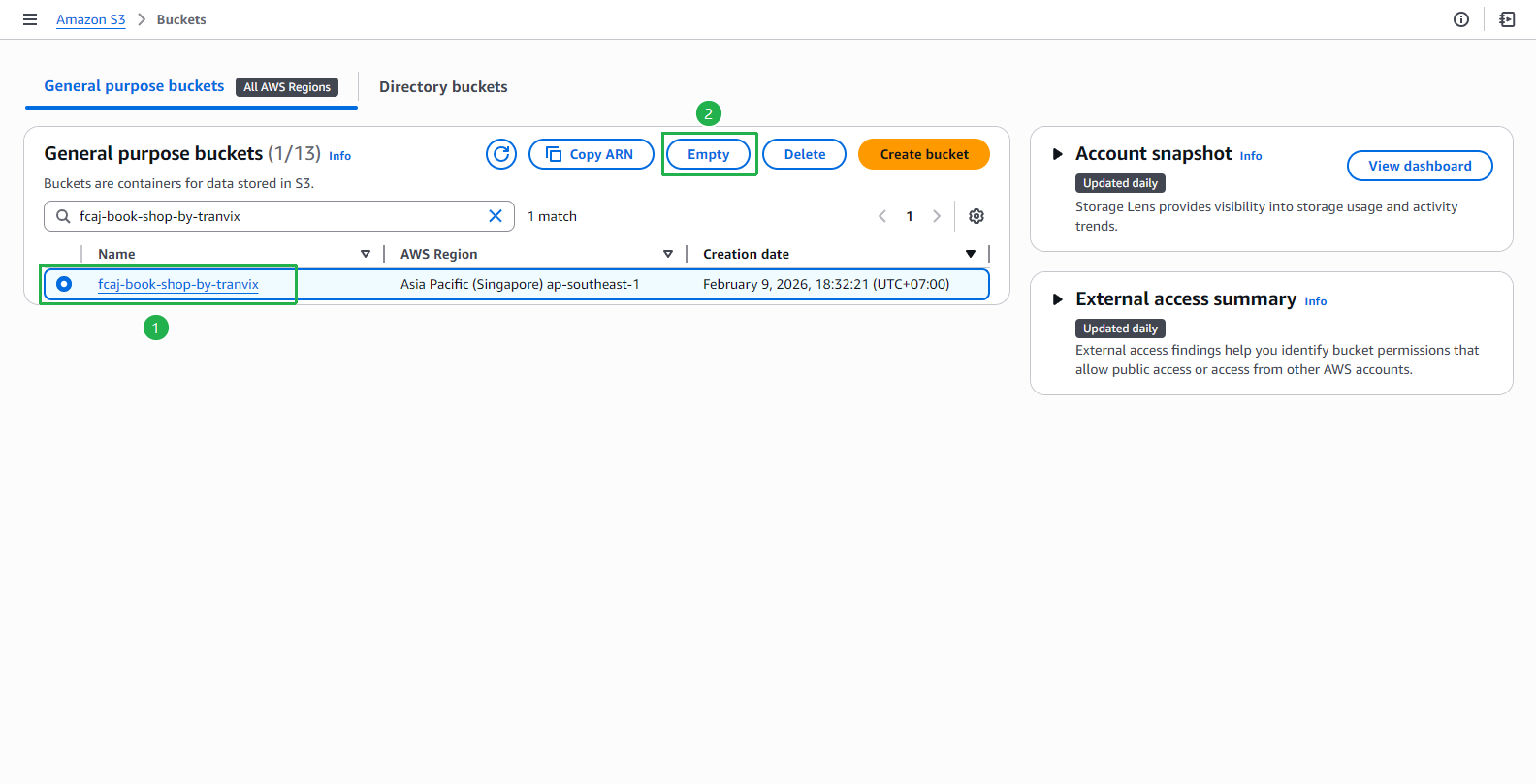
On the Empty bucket confirmation page:
- Type
permanently deletein the text field. - Click Empty.
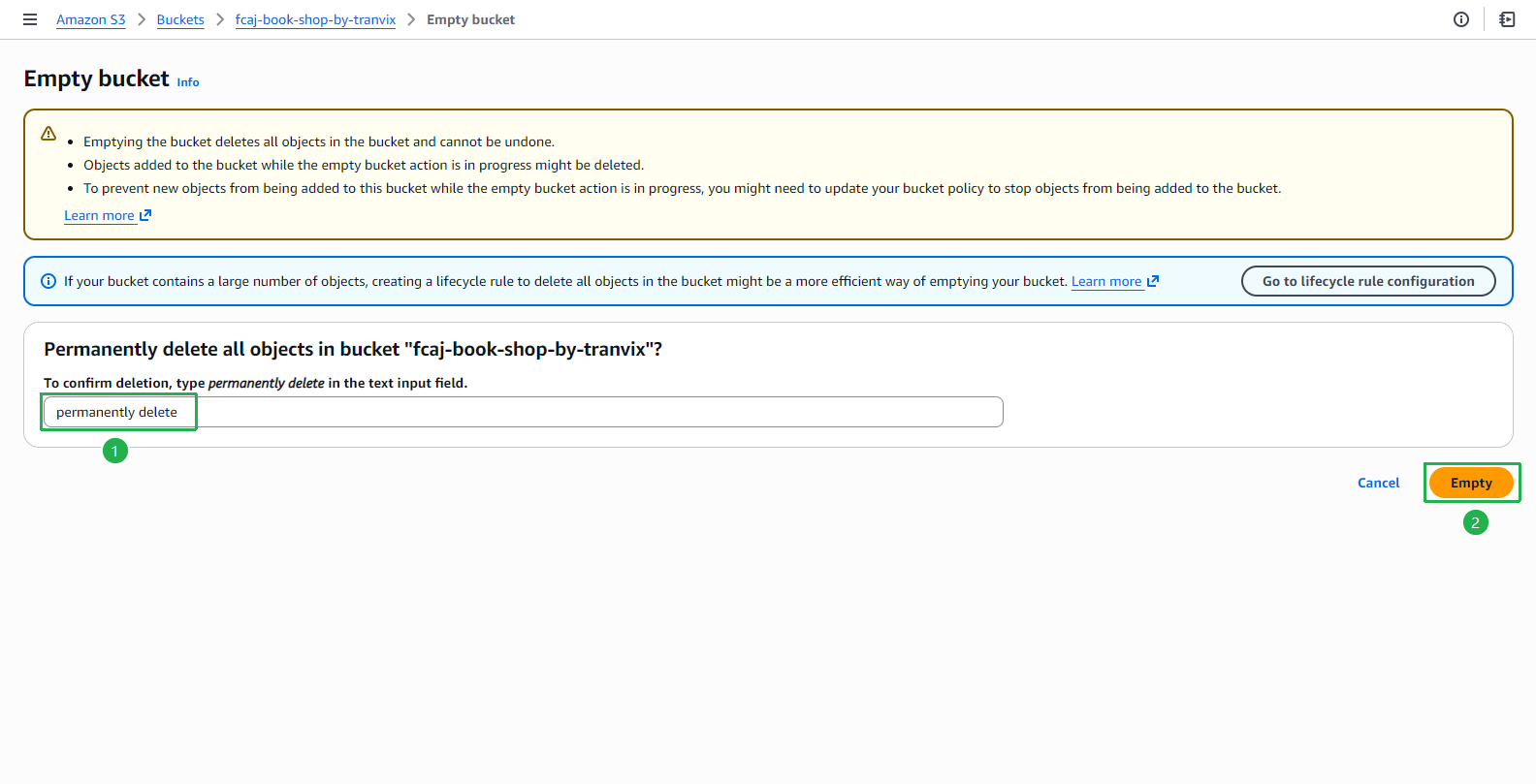
- Type
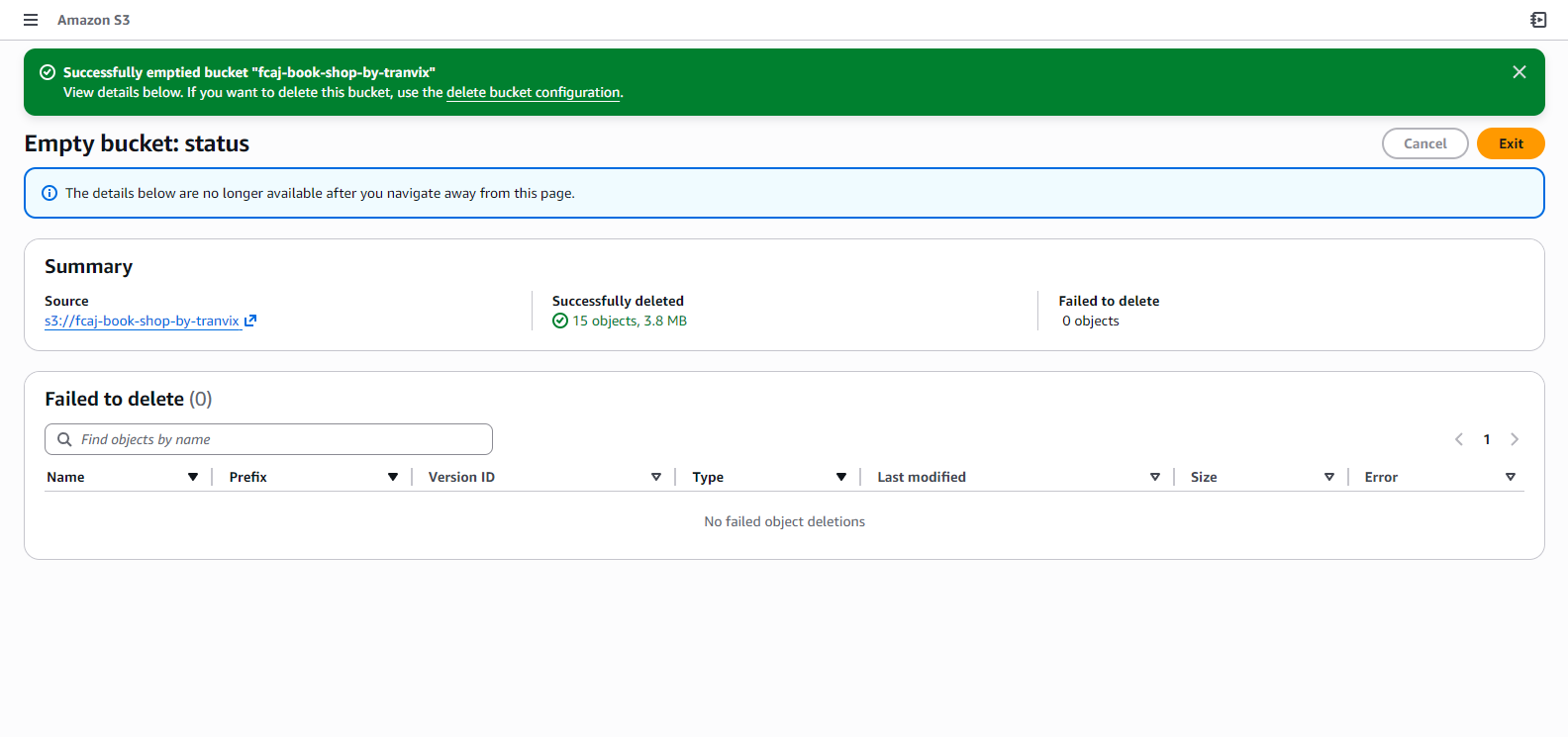
Wait for the operation to complete. The status page shows “Successfully emptied bucket” with 15 objects, 3.8 MB deleted.
Go back to the S3 bucket list. Select fcaj-book-shop-by-tranvix again, then click Delete.
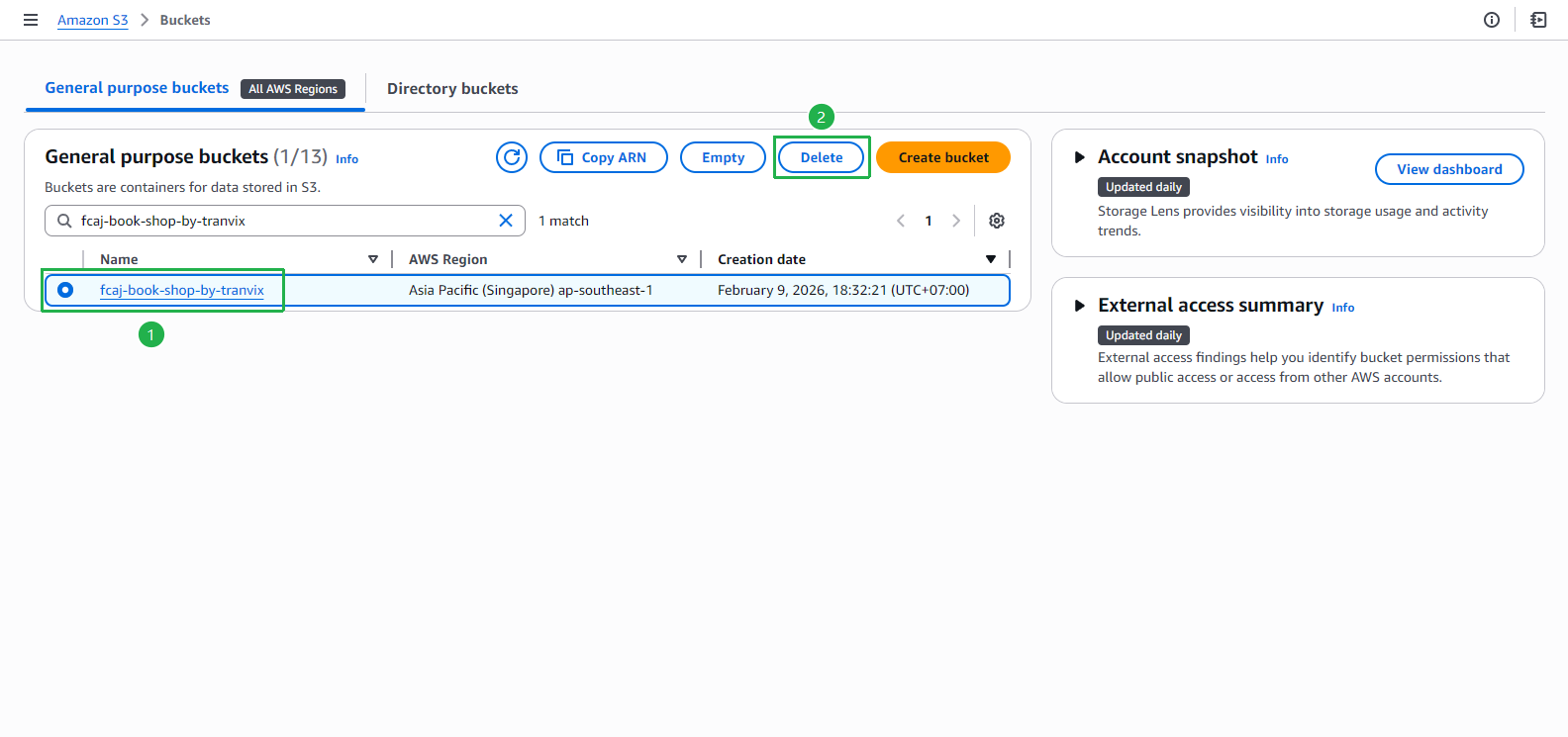
On the Delete bucket confirmation page:
- Type the bucket name
fcaj-book-shop-by-tranvixin the text field. - Click Delete bucket.
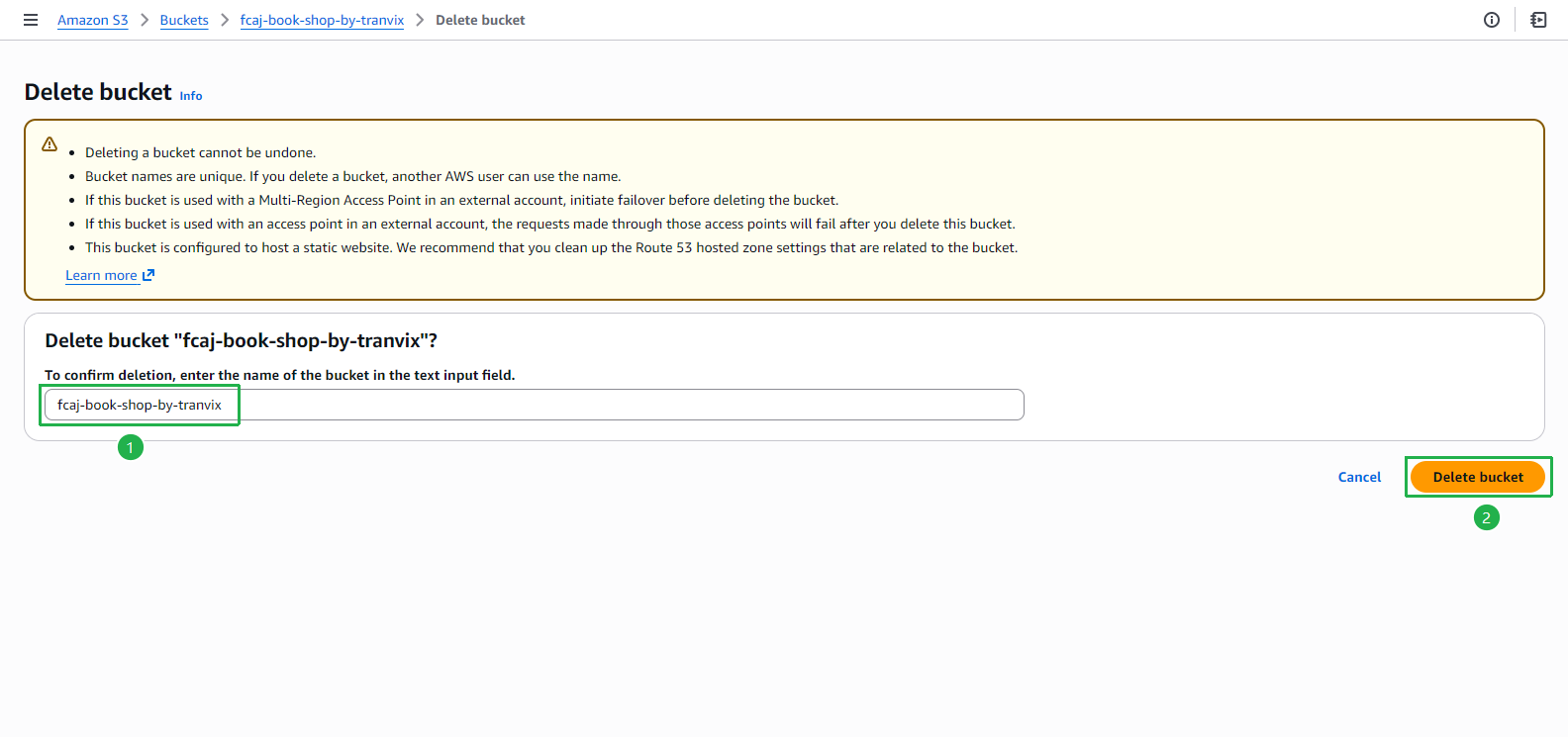
- Type the bucket name
2. Delete remaining S3 buckets
After deleting the front-end bucket, you will see the remaining workshop buckets. Empty and delete each of the following:
- book-image-resize-shop-by-tranvix — the resized image bucket
- book-image-shop-by-tranvix — the original image upload bucket
- aws-sam-cli-managed-default-samclisourcebucket-… — the SAM CLI deployment artifact bucket
Repeat the same Empty → Delete steps for each bucket.
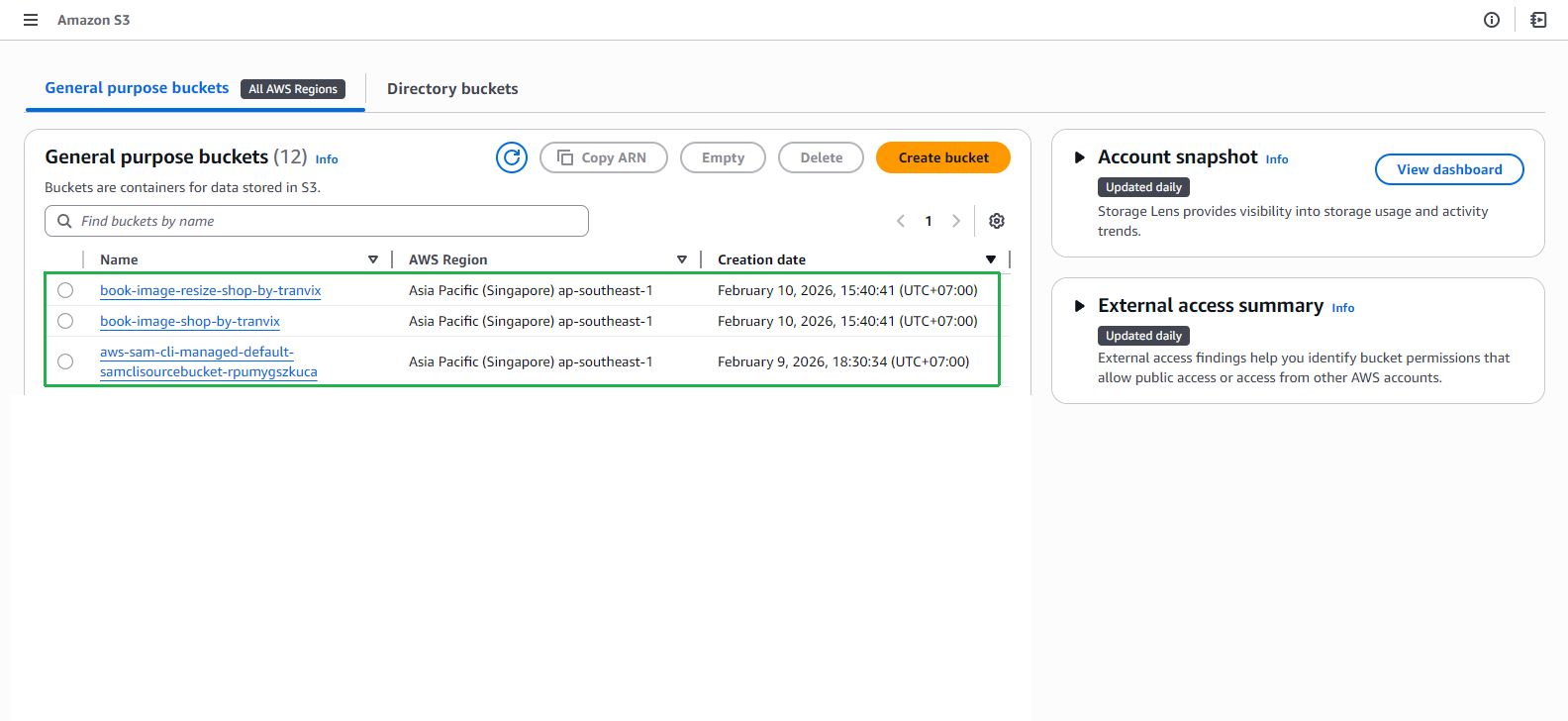
The book-image-resize-shop-by-tranvix and book-image-shop-by-tranvix buckets were created by SAM and may already be empty. Still confirm before deleting. The aws-sam-cli-managed-default-... bucket stores Lambda deployment artifacts and must also be emptied first.
3. Delete CloudFormation stacks (SAM applications)
Run the following commands in your terminal to delete the deployed SAM stacks:
sam delete --stack-name fcaj-book-shop
sam delete --stack-name aws-sam-cli-managed-default
- Follow the prompts and confirm with
ywhen asked. - This will delete all Lambda functions, API Gateway, DynamoDB tables, IAM roles, and other resources created by the SAM template.
If the sam delete command fails (e.g., due to non-empty S3 buckets still attached to the stack), ensure all relevant S3 buckets are fully emptied first, then re-run the command. Alternatively, open the AWS CloudFormation console and manually delete the stacks from there.