Tạo bảng trong DynamoDB
Trong bước này, chúng ta sẽ thêm tài nguyên DynamoDB table vào SAM template và triển khai bằng AWS SAM CLI.
Chỉnh sửa SAM Template
Mở tệp template.yaml trong thư mục fcaj-book-shop.
Thêm tham số booksTableName vào phần
Parameters:booksTableName: Type: String Default: Books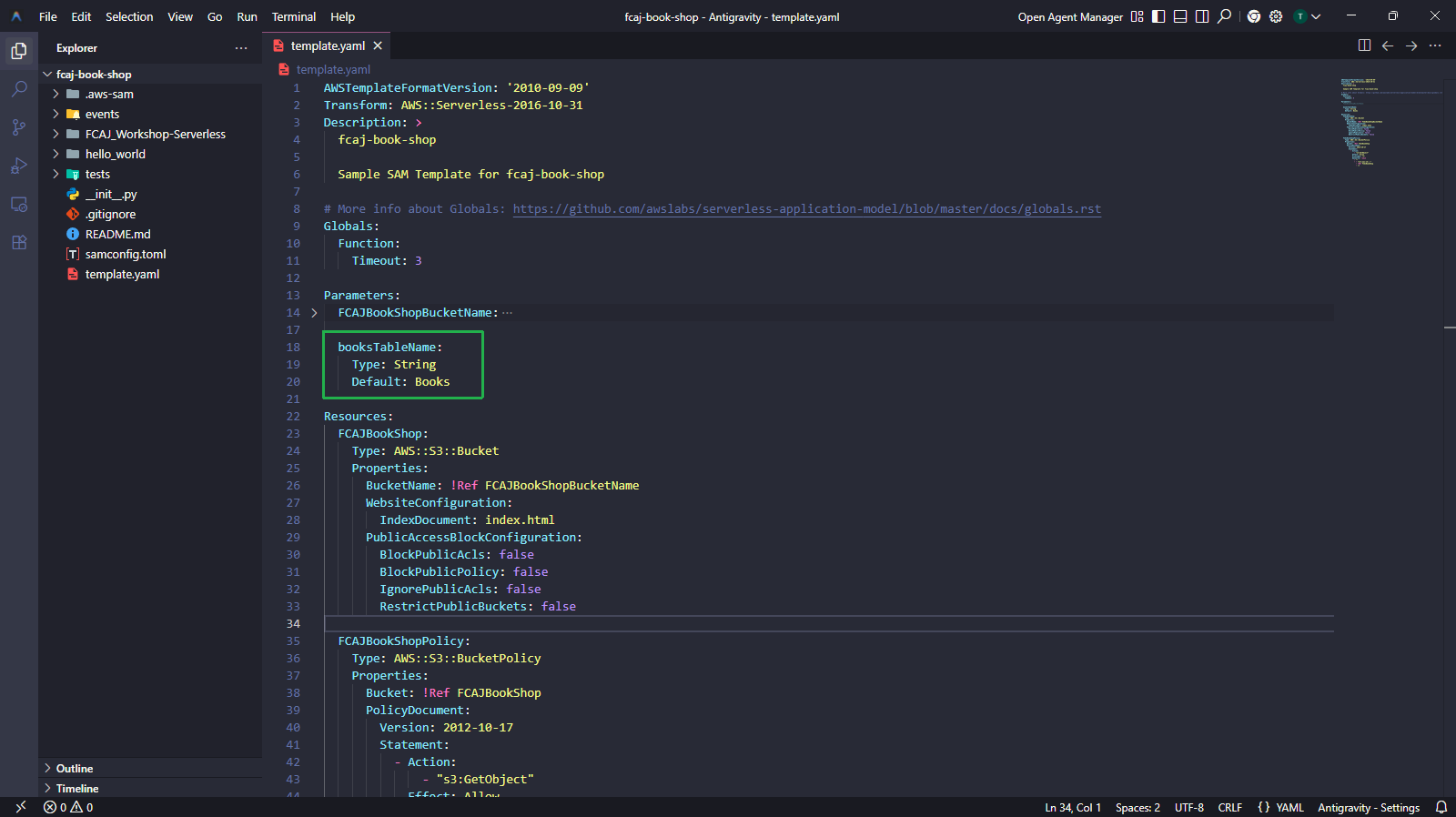
Thêm tài nguyên BooksTable vào phần
Resources:BooksTable: Type: AWS::DynamoDB::Table Properties: TableName: !Ref booksTableName BillingMode: PAY_PER_REQUEST AttributeDefinitions: - AttributeName: id AttributeType: S - AttributeName: rv_id AttributeType: N - AttributeName: name AttributeType: S KeySchema: - AttributeName: id KeyType: HASH - AttributeName: rv_id KeyType: RANGE LocalSecondaryIndexes: - IndexName: name-index KeySchema: - AttributeName: id KeyType: HASH - AttributeName: name KeyType: RANGE Projection: ProjectionType: ALL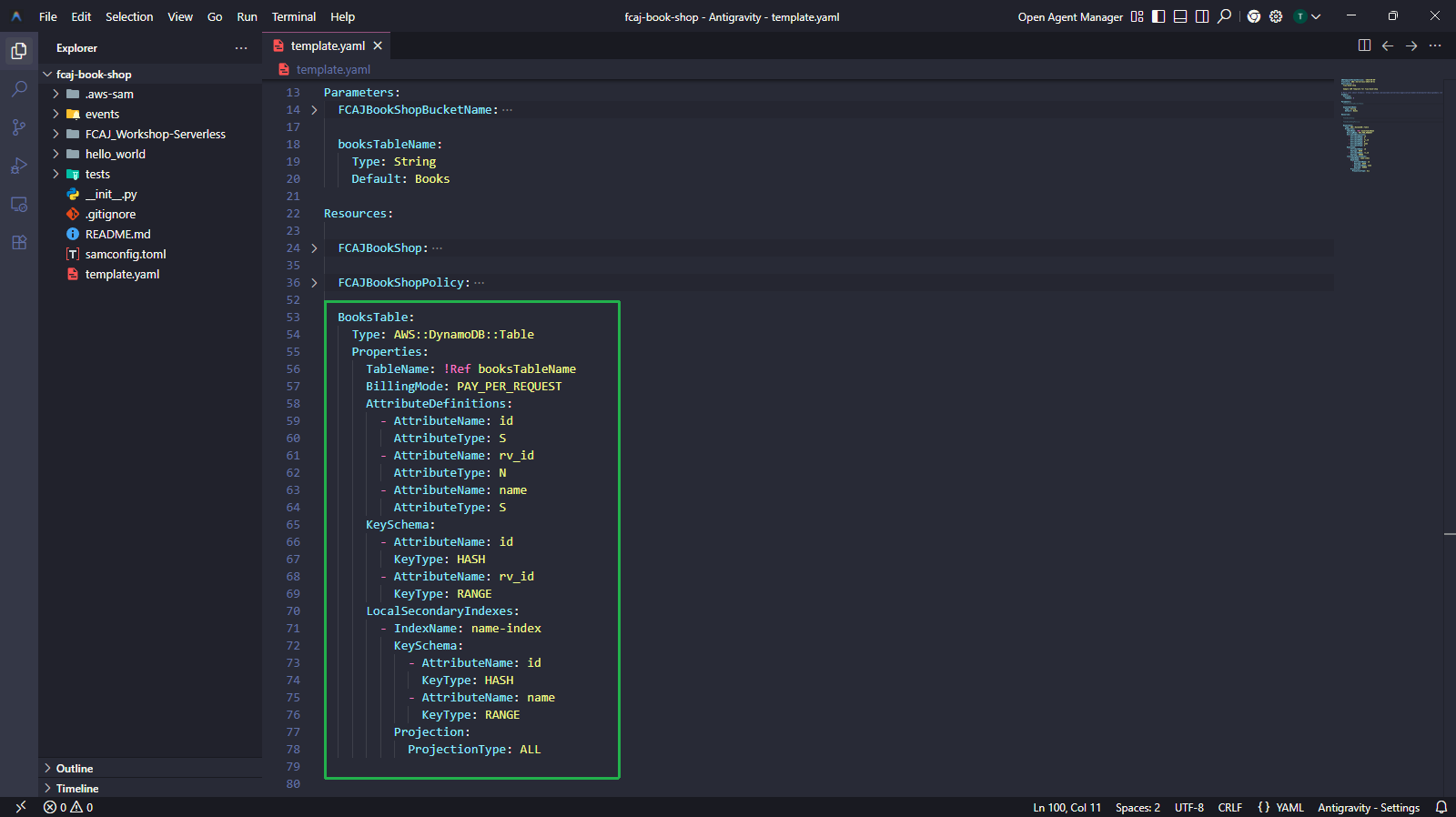
Đoạn mã trên tạo bảng Books trong DynamoDB với:
- Partition key:
id(String) - Sort key:
rv_id(Number) - Local Secondary Index:
name-indexvới sort keyname(String), projection tất cả các thuộc tính - Billing mode: PAY_PER_REQUEST (On-demand)
Build và Deploy
Chạy các lệnh sau để build và validate SAM template:
sam build
sam validate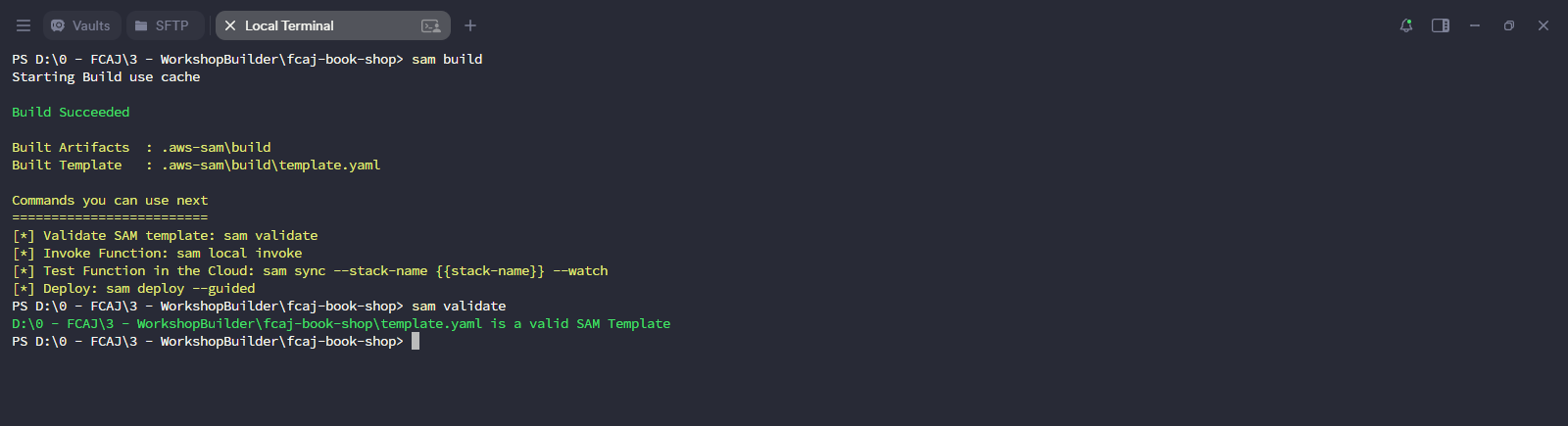
Triển khai stack đã cập nhật:
sam deployChangeset sẽ hiển thị tài nguyên mới
BooksTablethuộc loạiAWS::DynamoDB::Tableđược thêm vào. Nhậpyđể xác nhận triển khai.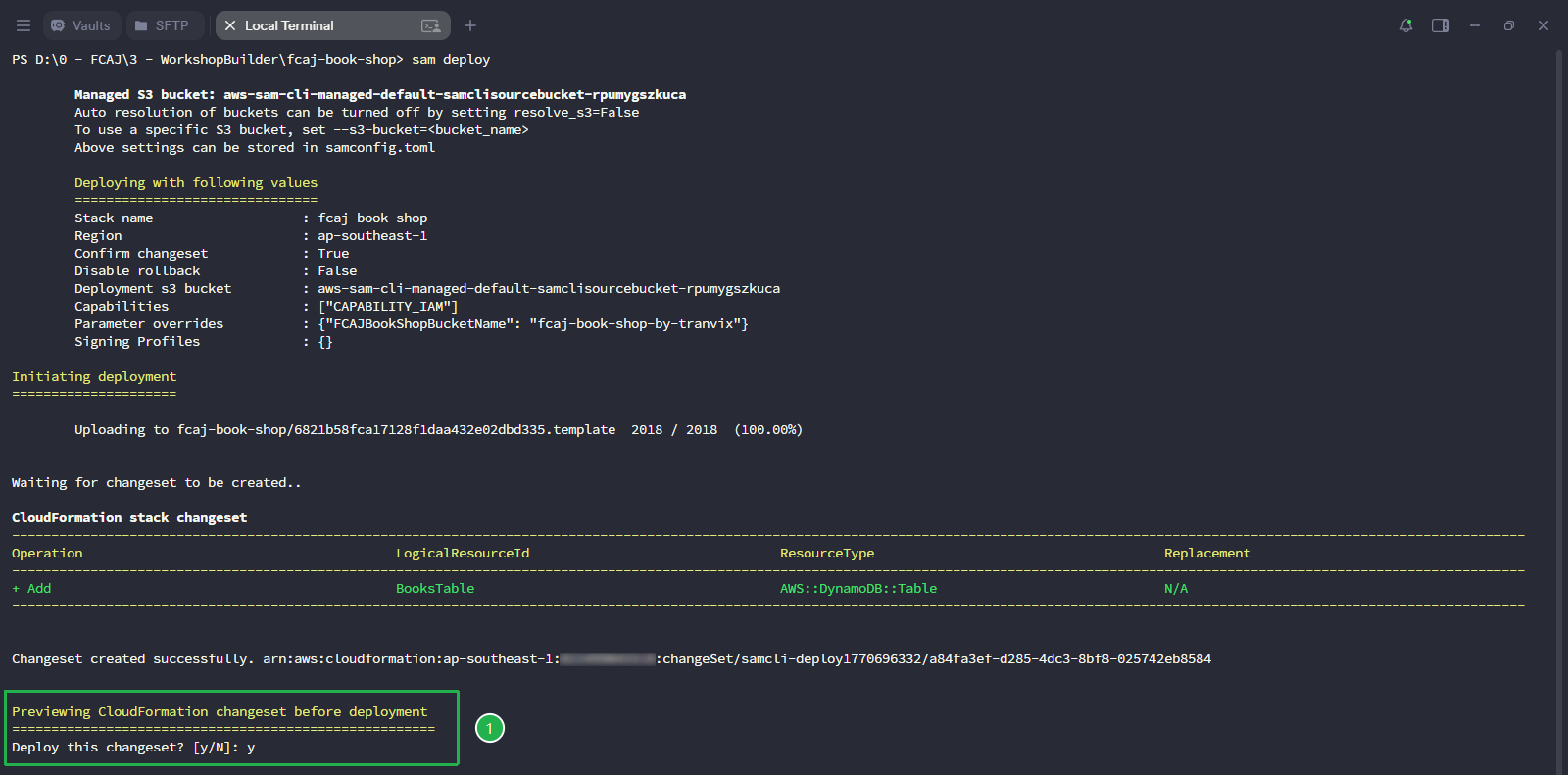
Chờ quá trình triển khai hoàn tất. Bạn sẽ thấy thông báo Successfully created/updated stack.
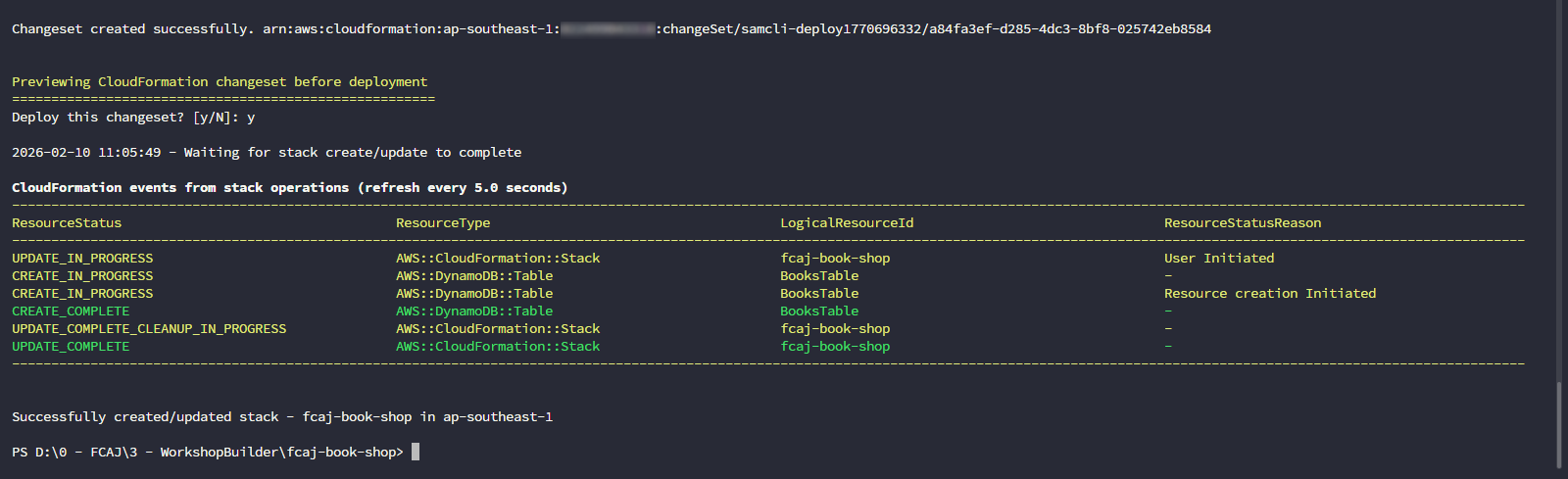
Kiểm tra trên AWS Console
Mở CloudFormation console để xác nhận trạng thái stack là UPDATE_COMPLETE.
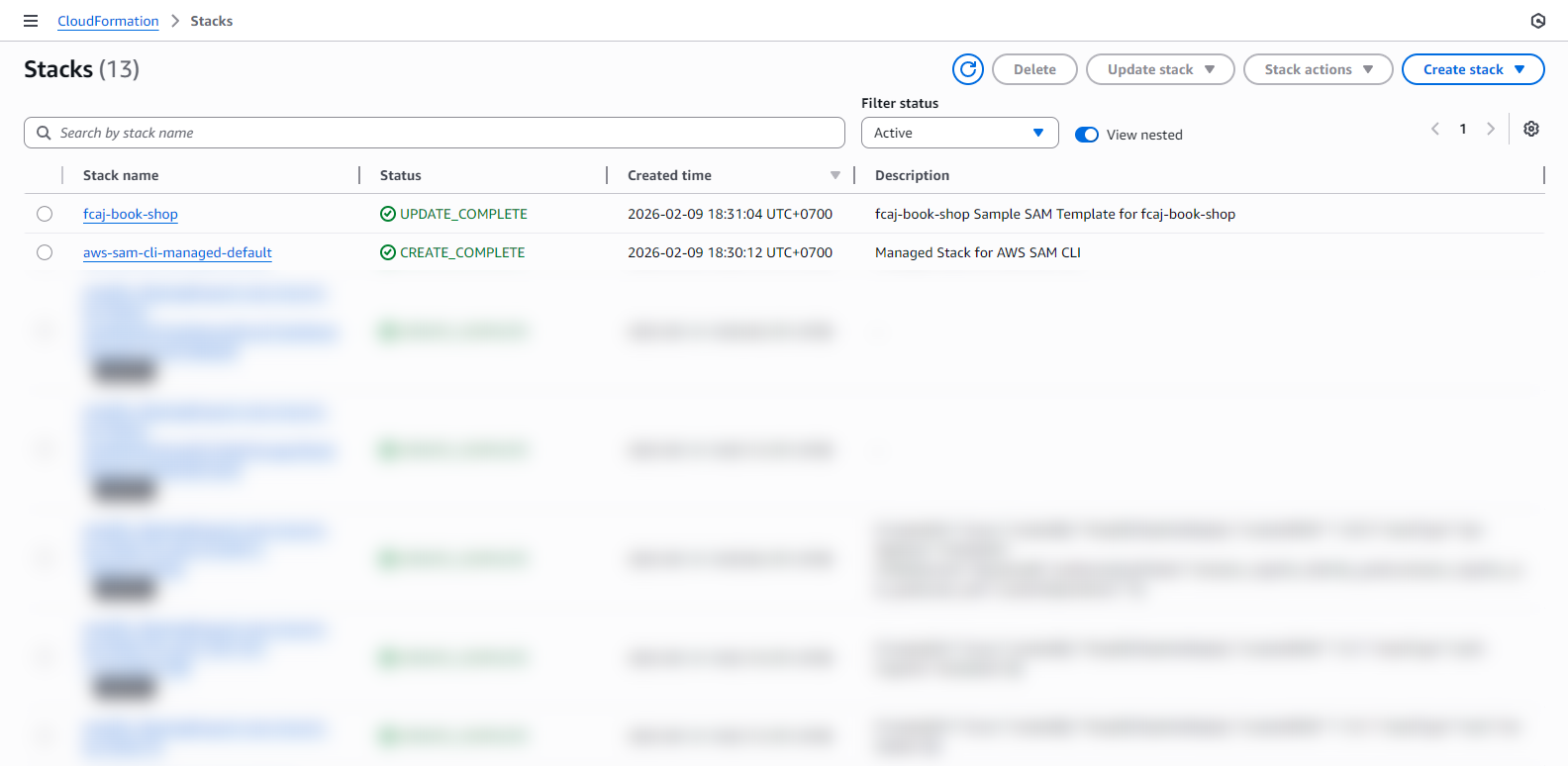
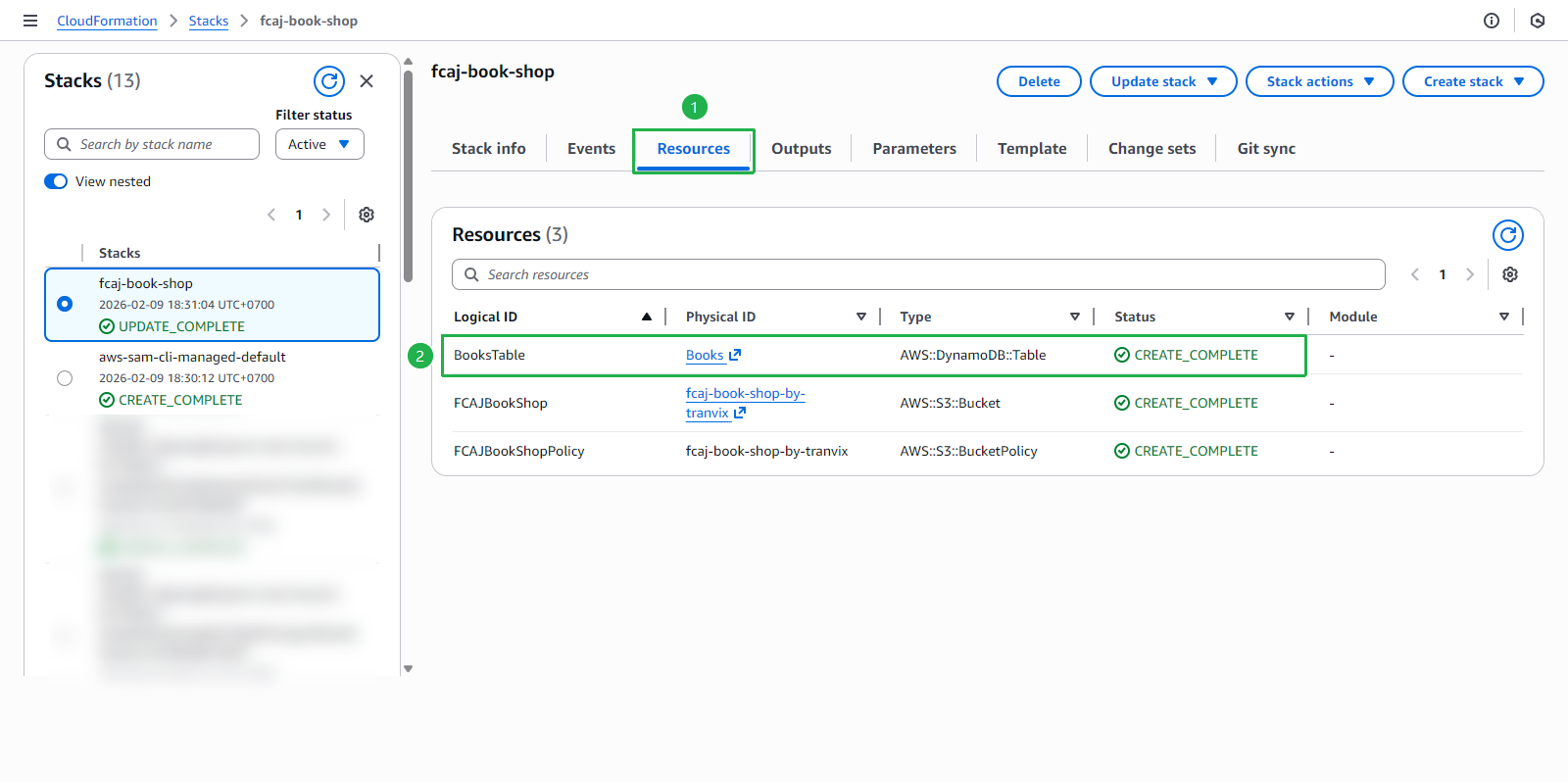
Nhấp vào stack fcaj-book-shop, chuyển sang tab Resources. Bạn sẽ thấy tài nguyên mới BooksTable với trạng thái CREATE_COMPLETE.
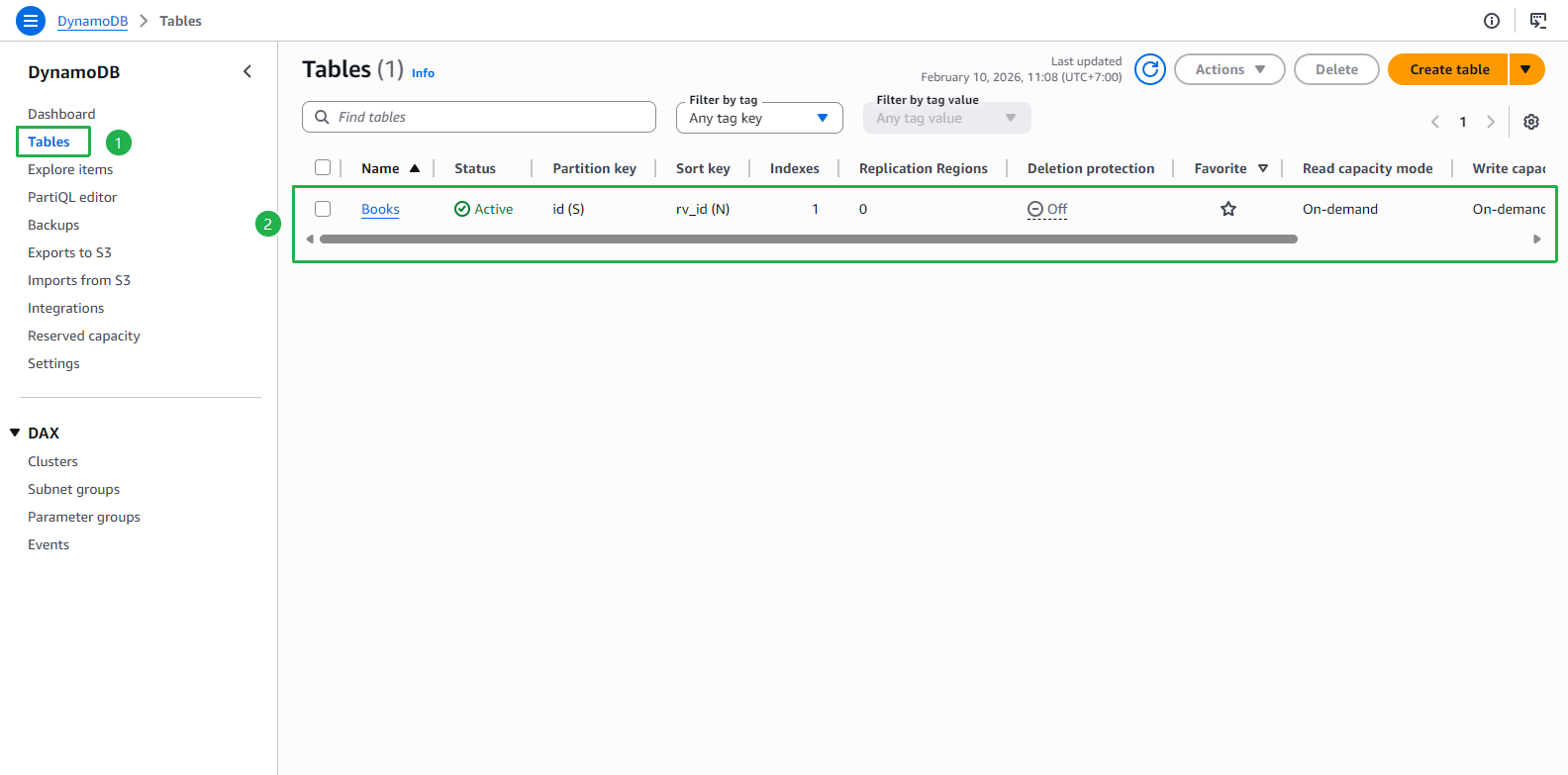
Mở DynamoDB console. Tại trang Tables, bạn sẽ thấy bảng Books với trạng thái Active.
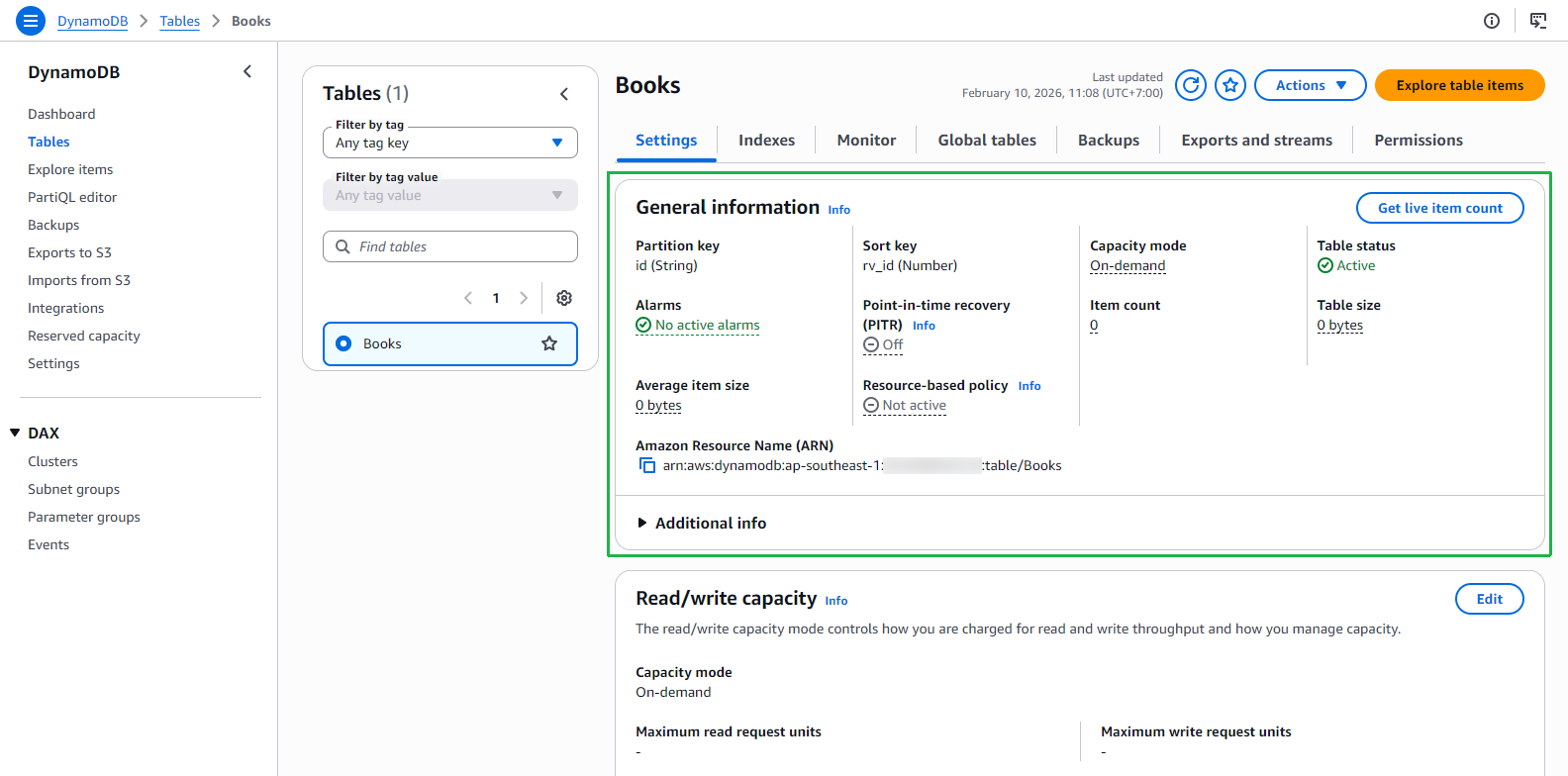
Nhấp vào bảng Books để xem chi tiết:
- Kiểm tra phần General information: Partition key là
id (String), Sort key làrv_id (Number), và Capacity mode là On-demand.
- Kiểm tra phần General information: Partition key là
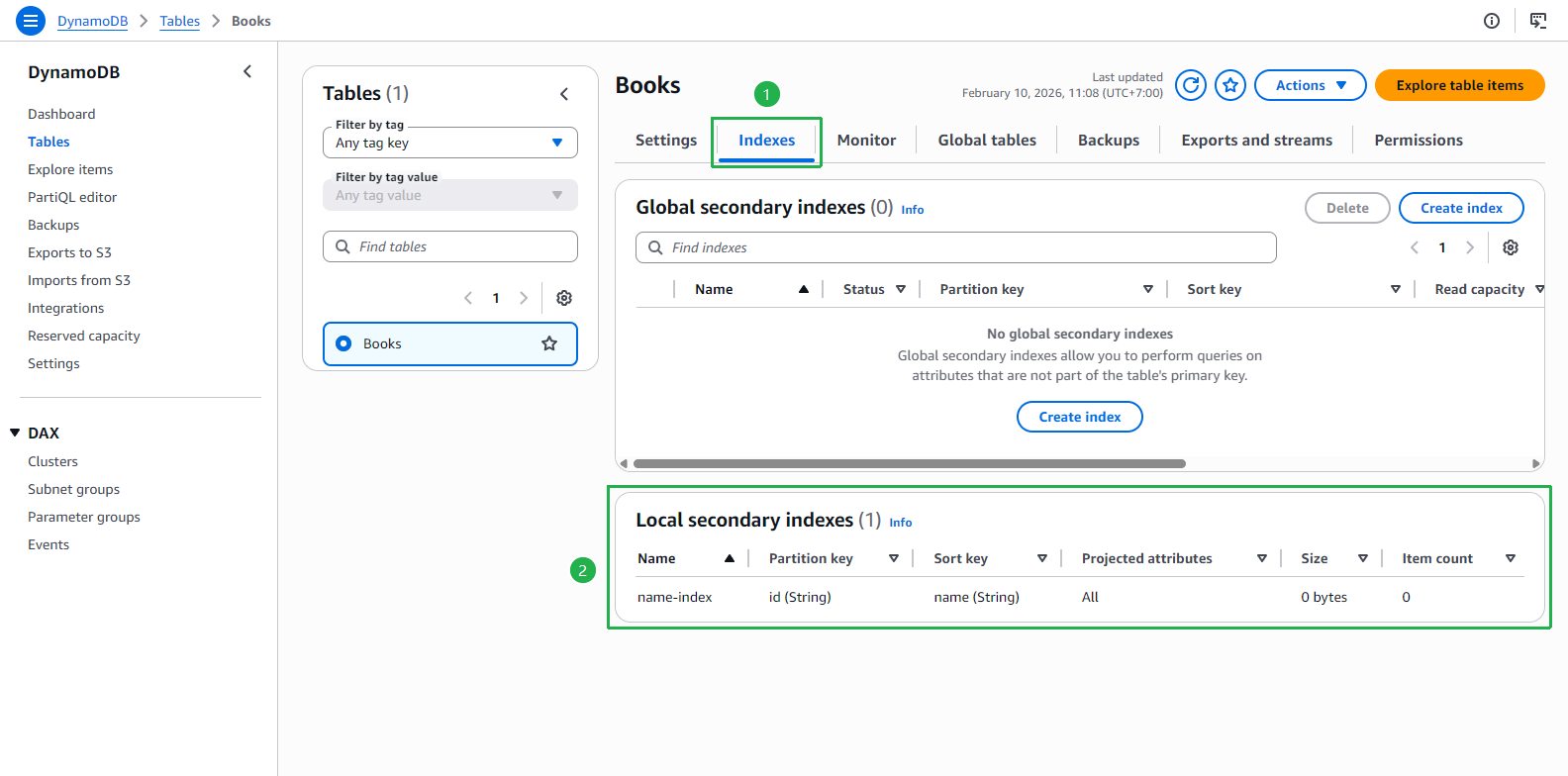
Nhấp vào tab Indexes:
- Xác nhận phần Local secondary indexes hiển thị
name-indexvới Partition keyid (String)và Sort keyname (String).
- Xác nhận phần Local secondary indexes hiển thị
Vậy là bạn đã tạo thành công bảng Books với Local Secondary Index name-index.
Thêm dữ liệu mẫu
- Để thêm dữ liệu vào bảng, hãy tải tệp bên dưới. Sau đó, mở tệp và thay thế tất cả AWS-REGION bằng region mà bạn đã tạo S3 bucket (ví dụ:
ap-southeast-1).
- Dữ liệu dùng để import vào DynamoDB table: dynamoDB.json
Hãy đảm bảo thay thế tất cả các giá trị AWS-REGION trong tệp dynamoDB.json bằng region AWS thực tế của bạn trước khi chạy lệnh import.
Chạy lệnh sau tại thư mục nơi bạn lưu tệp dynamoDB.json:
aws dynamodb batch-write-item --request-items file://dynamoDB.json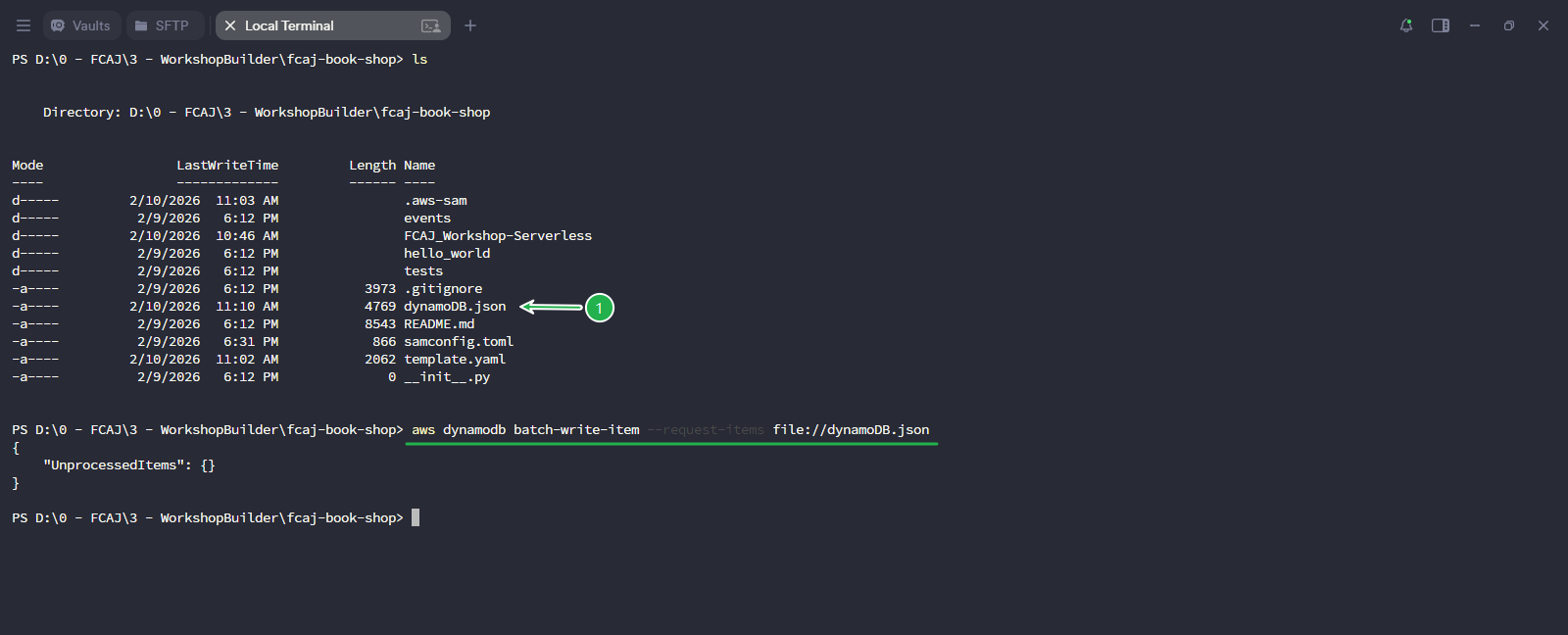
Nếu output hiển thị "UnprocessedItems": {}, điều đó có nghĩa là tất cả các item đã được ghi thành công vào bảng.
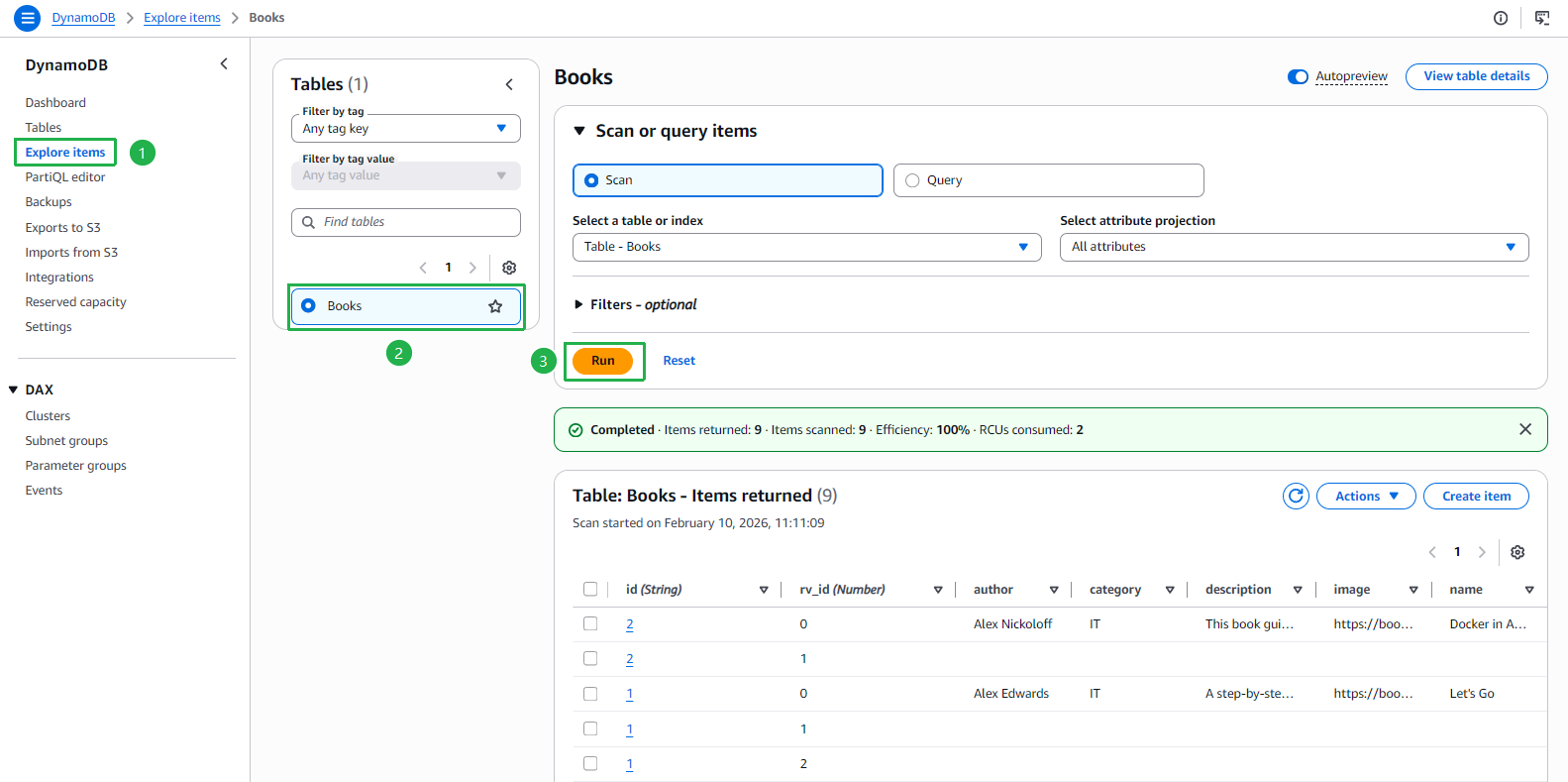
Để kiểm tra dữ liệu, vào DynamoDB console, nhấp Explore items ở thanh bên trái, chọn bảng Books và nhấp Run để scan bảng. Bạn sẽ thấy 9 item được trả về.