Test APIs with front-end
After confirming that all three APIs work correctly using Postman, we will now connect the FCJ Book Store React front-end to our deployed API Gateway and test the full end-to-end flow through the browser.
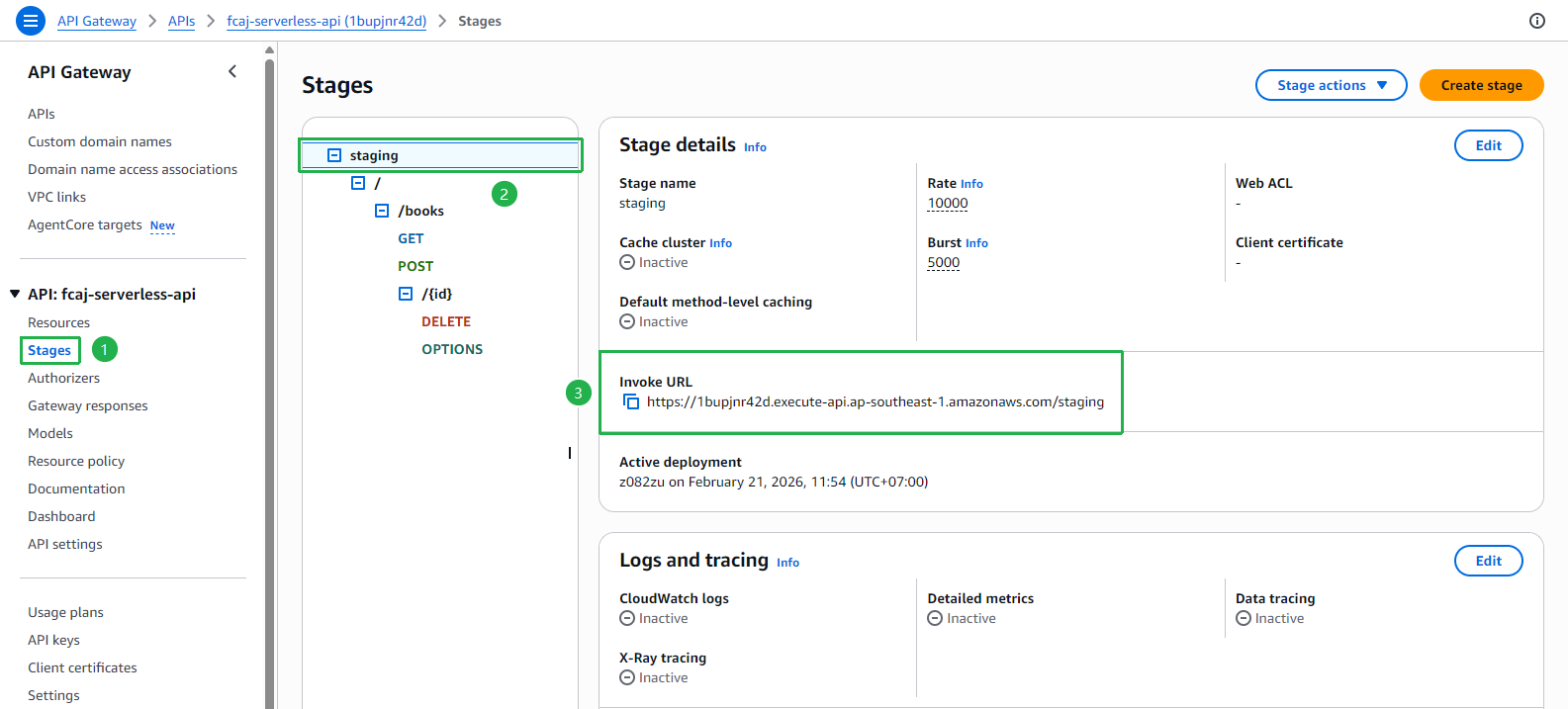
1. Copy the Invoke URL from API Gateway
Open the API Gateway console.
- Navigate to fcaj-serverless-api → Stages → staging.
- Copy the Invoke URL shown in the Stage details panel, e.g.:
https://1bupjnr42d.execute-api.ap-southeast-1.amazonaws.com/staging
2. Update the front-end configuration
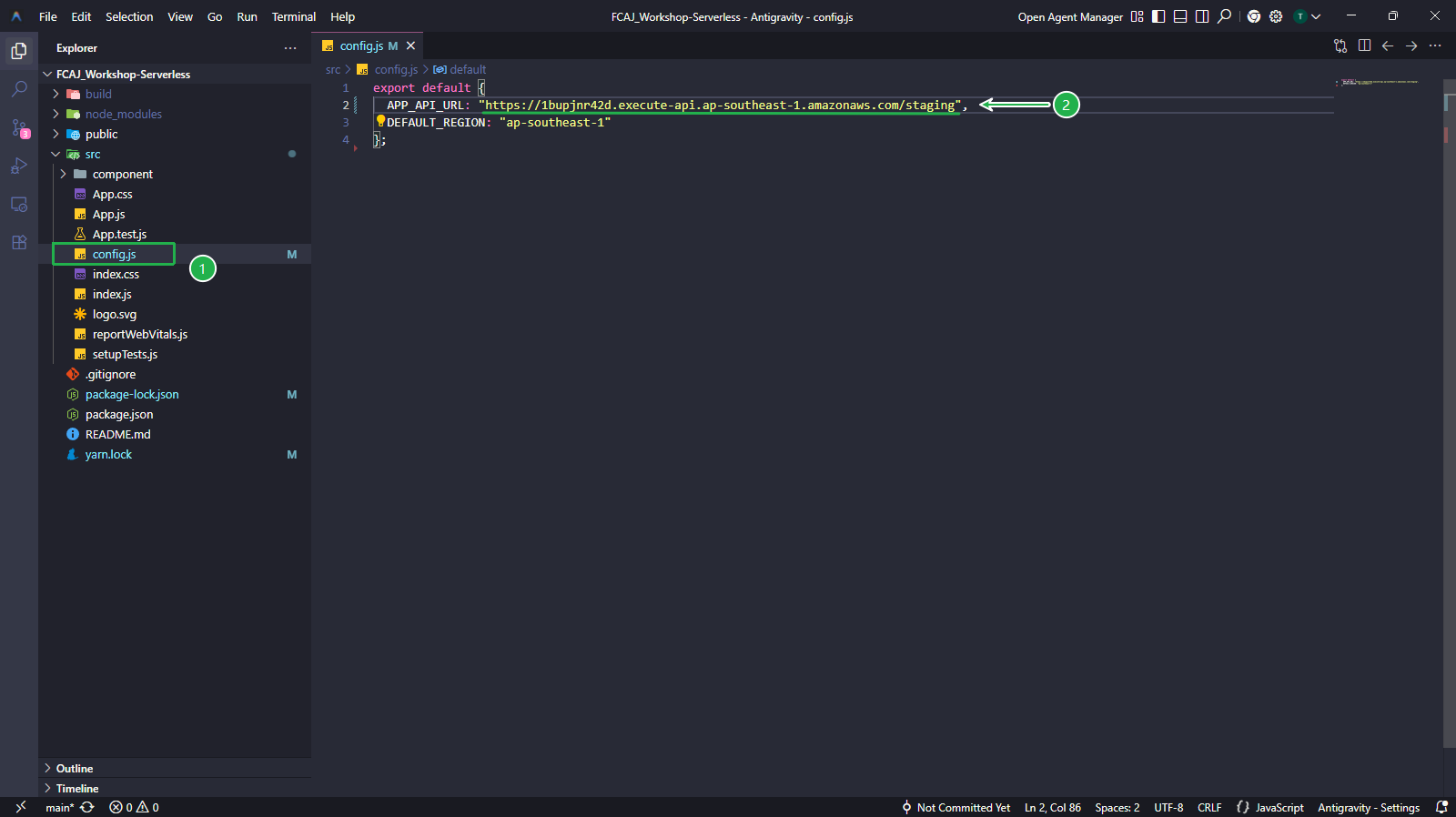
In the FCAJ_Workshop-Serverless front-end project, open
src/config.js.- Set the value of
APP_API_URLto the Invoke URL you just copied.
export default {
  APP_API_URL: "https://1bupjnr42d.execute-api.ap-southeast-1.amazonaws.com/staging",
  DEFAULT_REGION: "ap-southeast-1"
};
- Set the value of
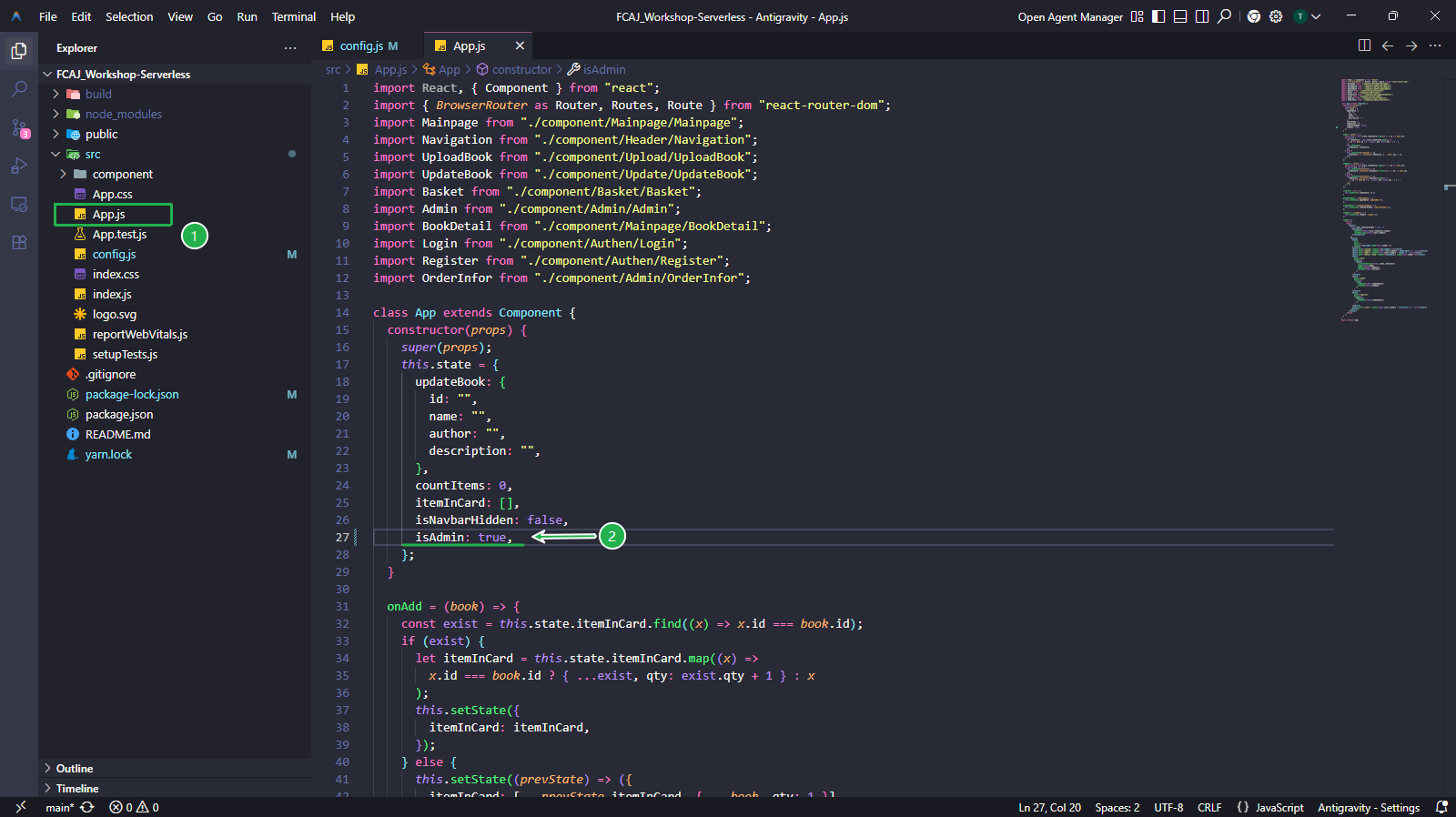
Open
src/App.js.- In the constructor’s
this.state, setisAdmintotrueso that admin features (Create, Update, Delete) are enabled in the UI.
- In the constructor’s
3. Build and deploy the front-end to S3
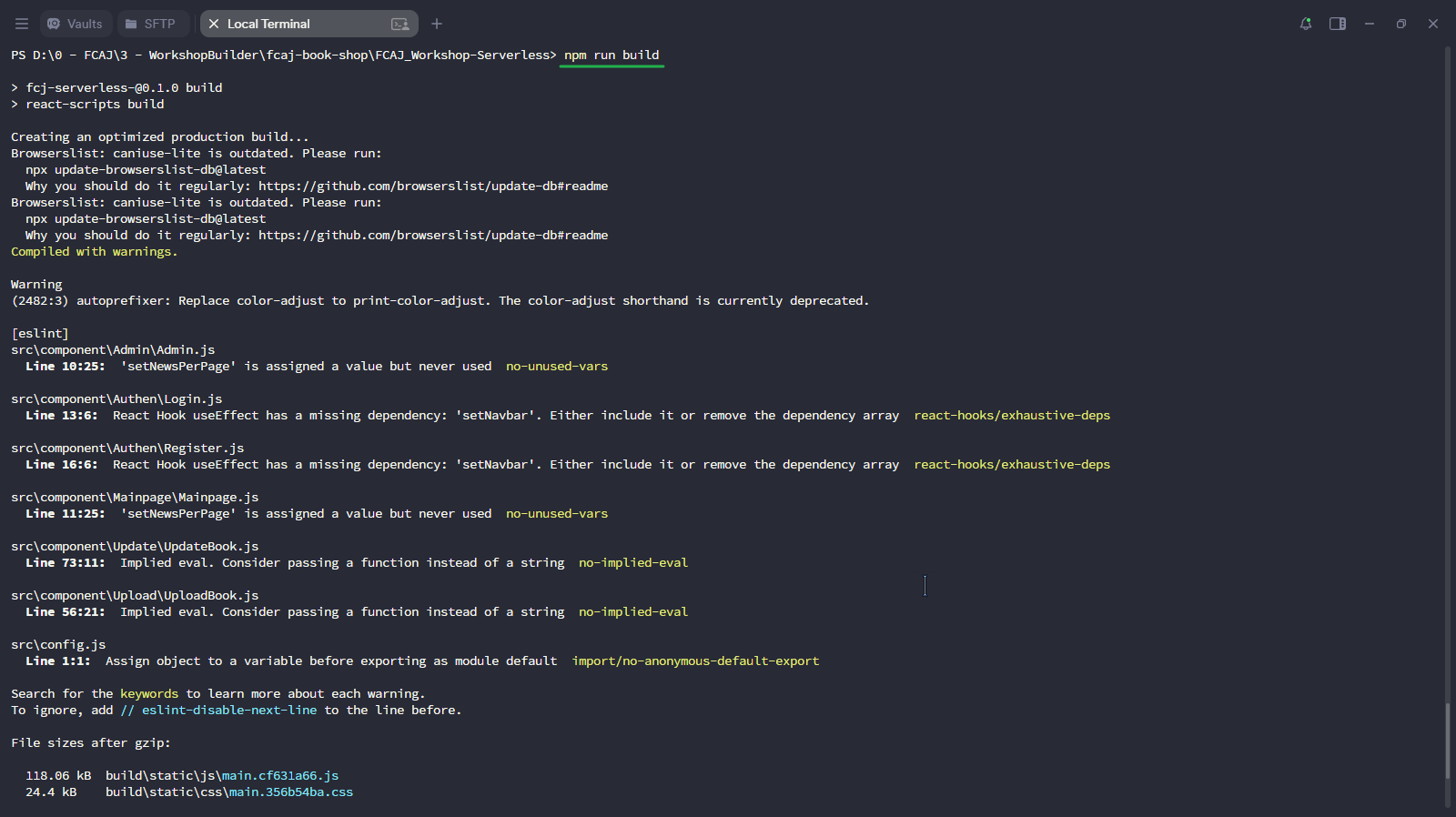
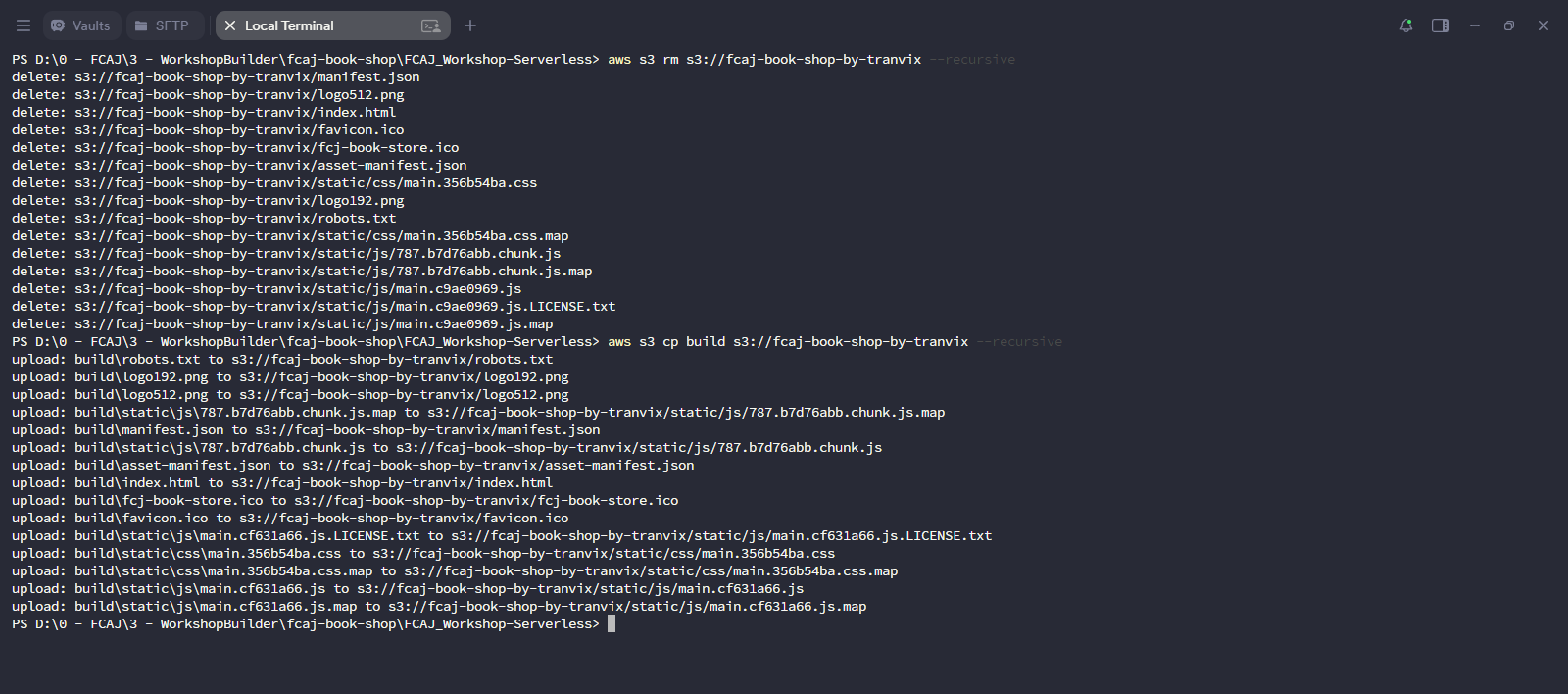
In your terminal, navigate to the front-end project root and run the following commands:
npm run build
aws s3 rm s3://fcaj-book-shop-by-tranvix --recursive
aws s3 cp build s3://fcaj-book-shop-by-tranvix --recursive
npm run buildcompiles an optimized production bundle into thebuild/folder.aws s3 rmclears the existing files from the S3 hosting bucket.aws s3 cpuploads the fresh build.
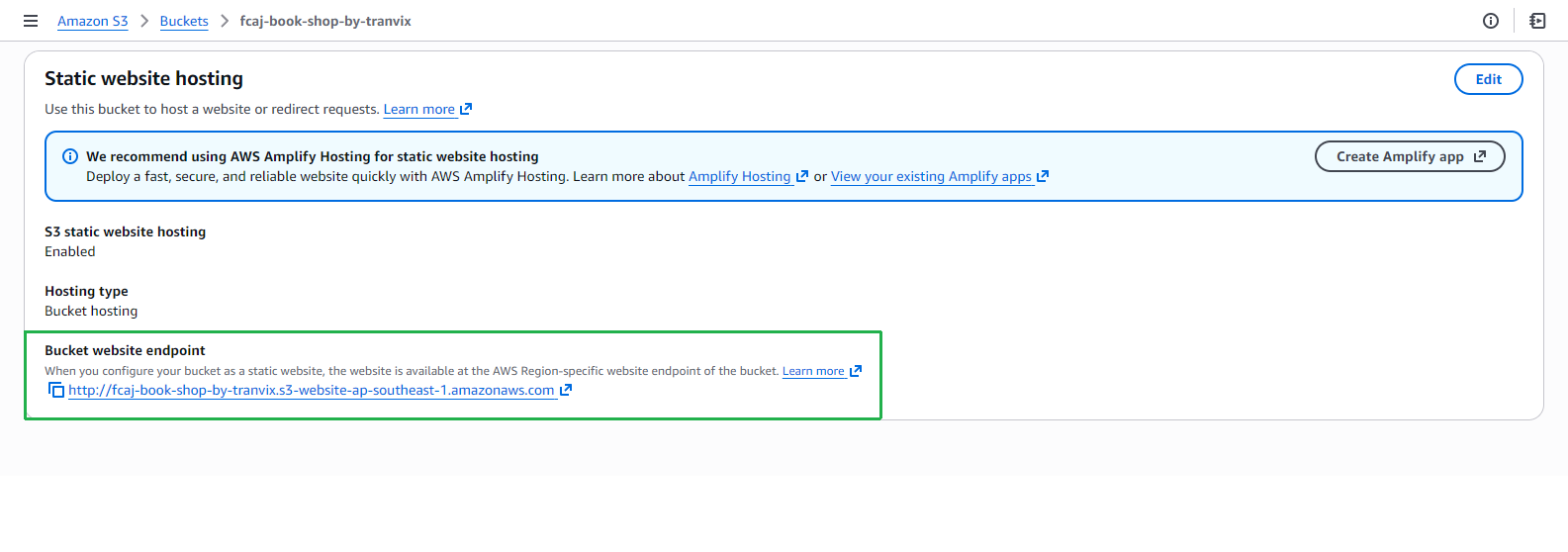
Open the S3 console, navigate to the fcaj-book-shop-by-tranvix bucket → Properties tab → scroll down to Static website hosting.
- Copy the Bucket website endpoint URL.
4. Test the GET API (List books)
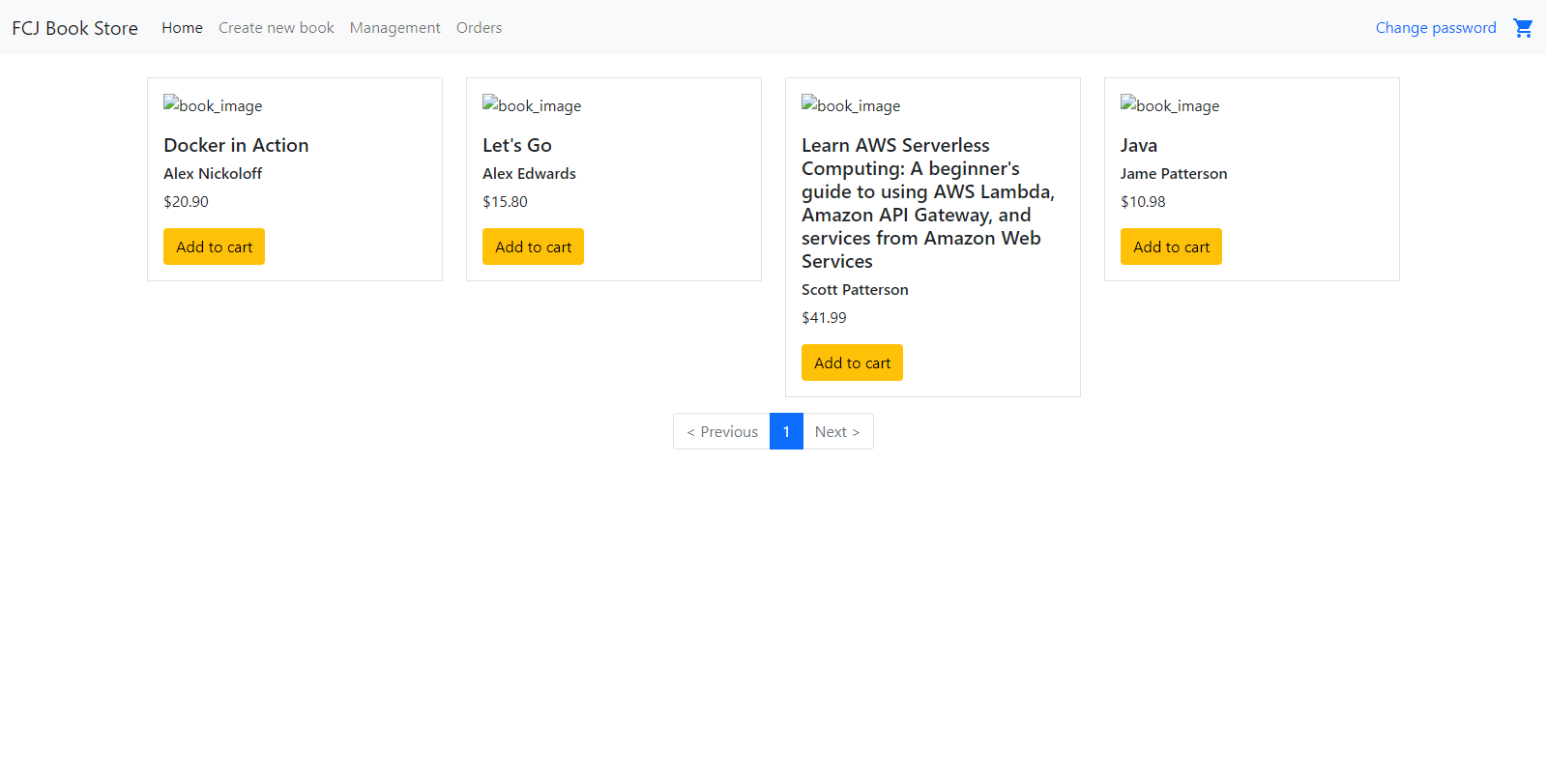
Paste the S3 website endpoint into your browser. The FCJ Book Store home page loads and displays the book list from DynamoDB.
Book images may not display if the image URLs in DynamoDB still point to the original S3 image bucket and the images have not been uploaded yet. The book name, author, and price will still appear correctly.
5. Test the POST API (Update a book)
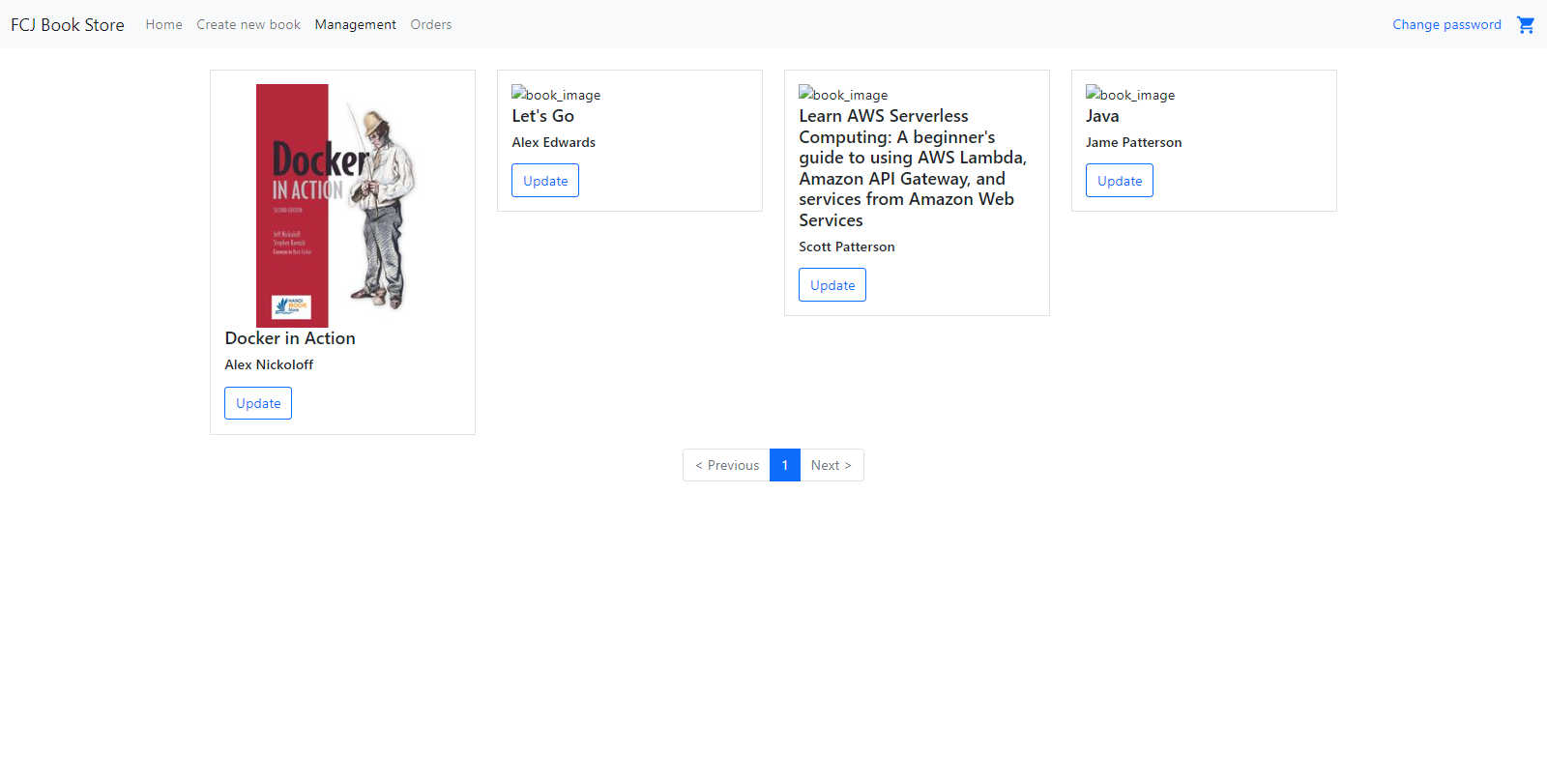
Click the Management tab in the navigation bar.
- The page shows all books with an Update button for each.
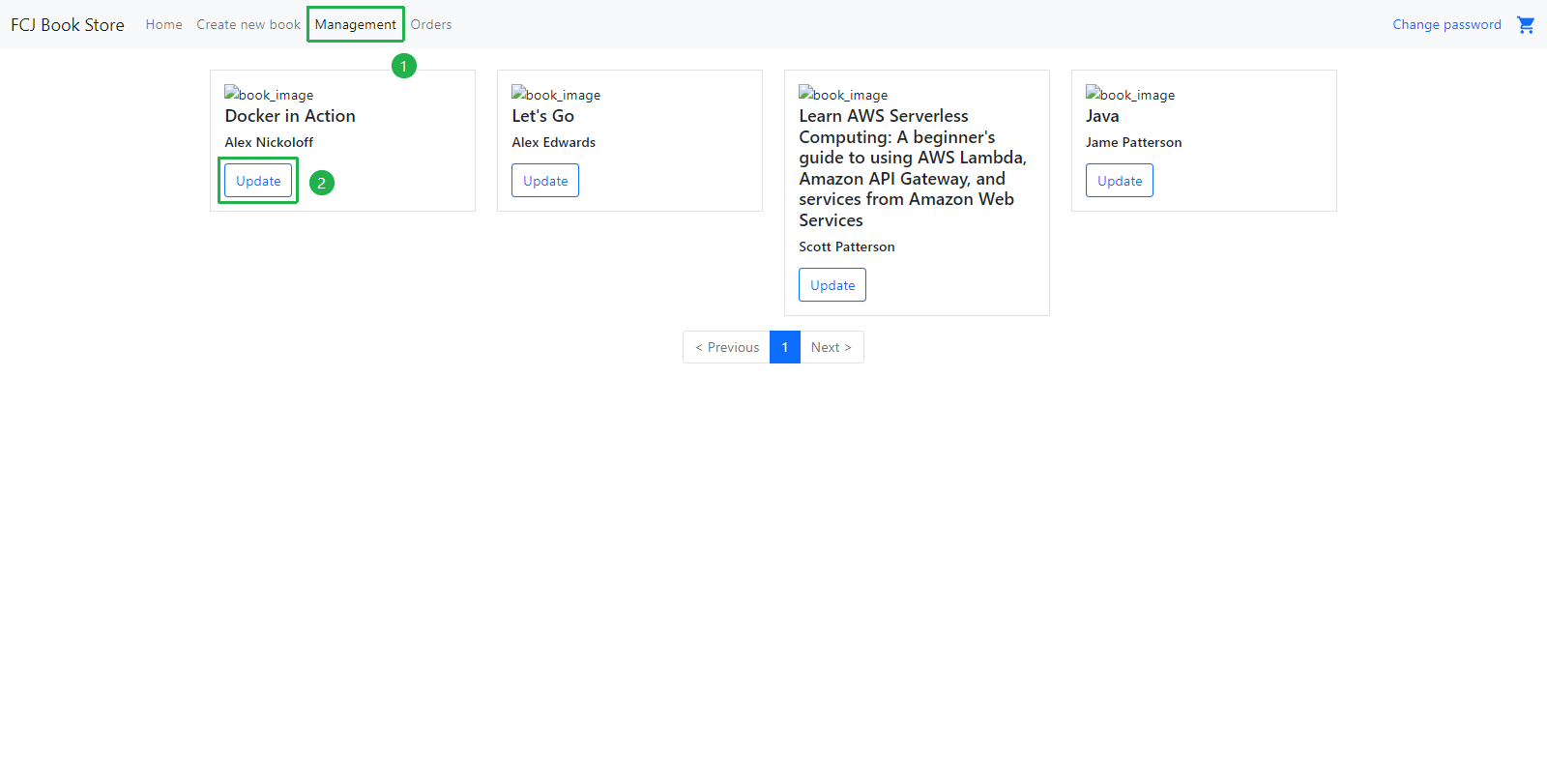
Click Update on any book (e.g., Docker in Action).
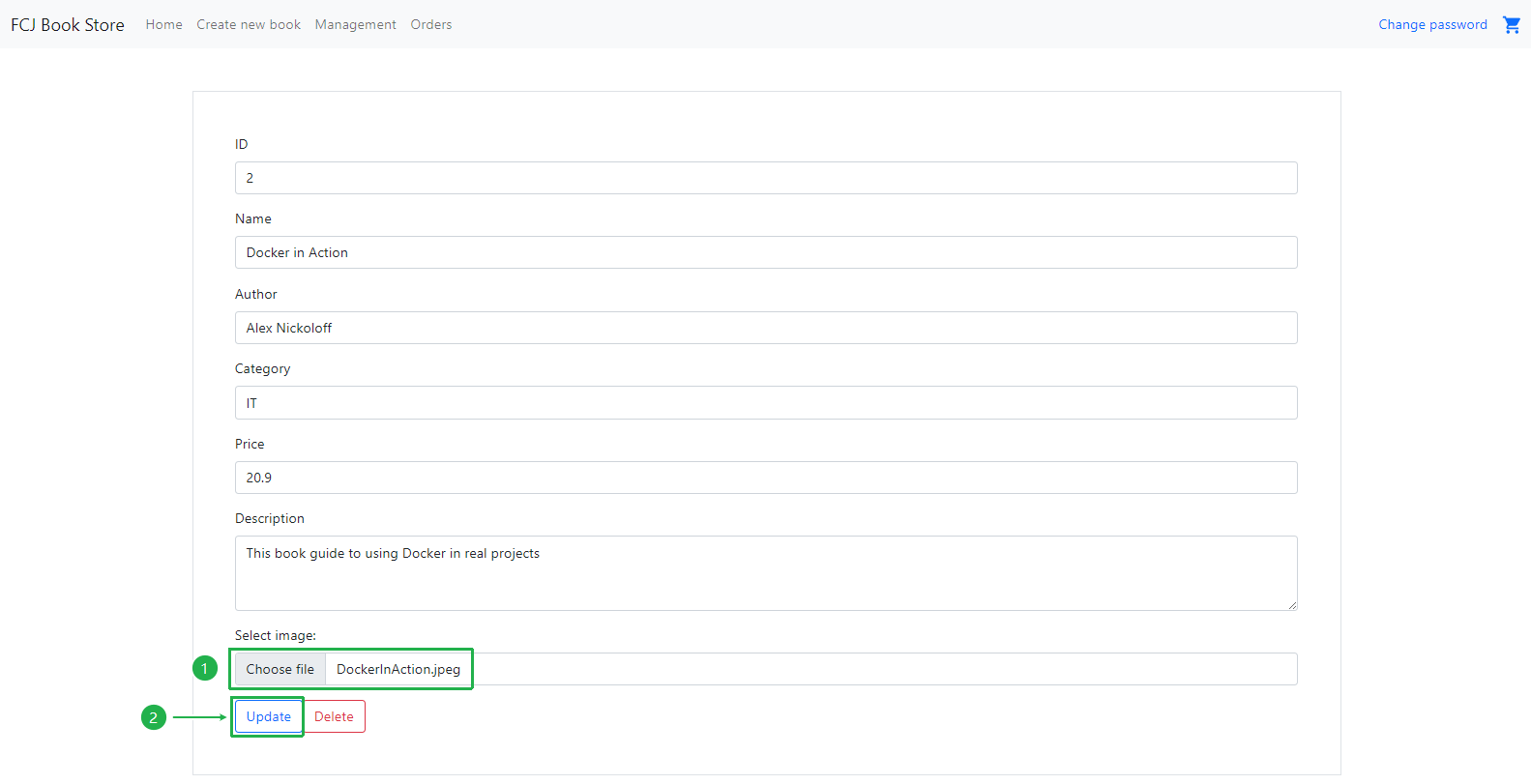
- The update form opens, pre-filled with the book’s existing data.
- Click Choose file and select an image file to upload (e.g.,
DockerInAction.jpeg). - Download the image
DockerInAction.jpegat Link and select this image file. - Click the Update button.
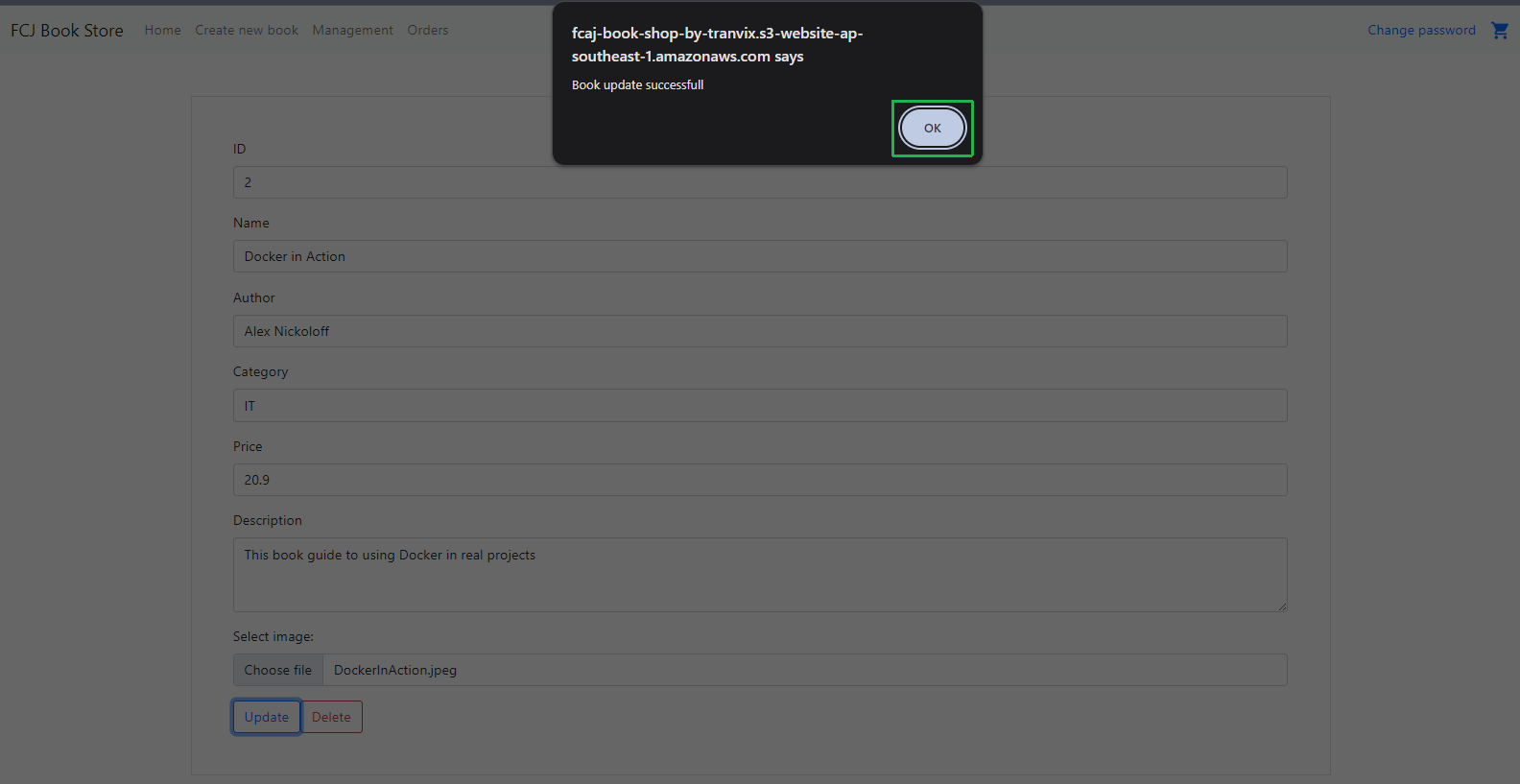
A browser dialog appears: “Book update successfull”. Click OK.
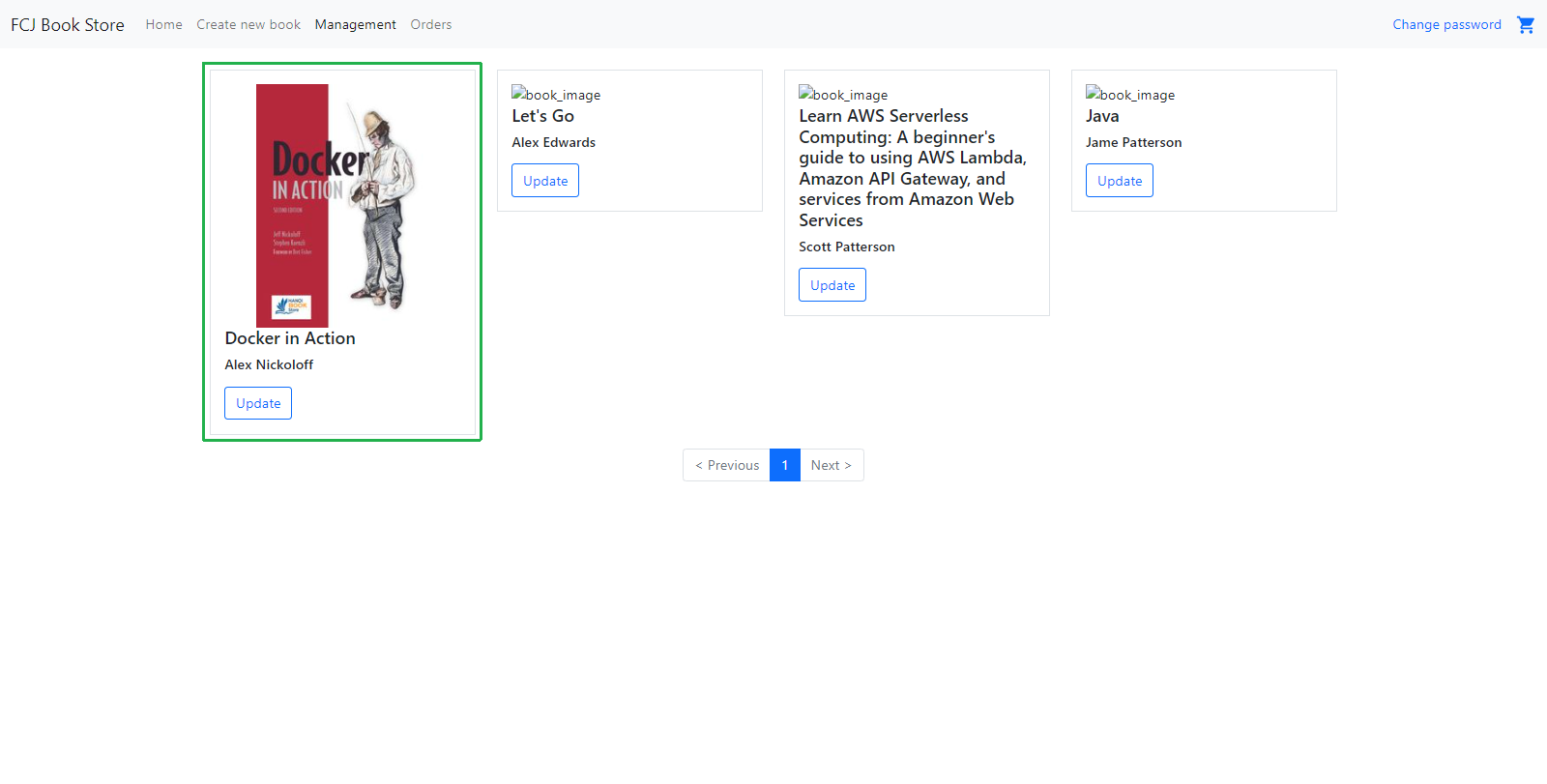
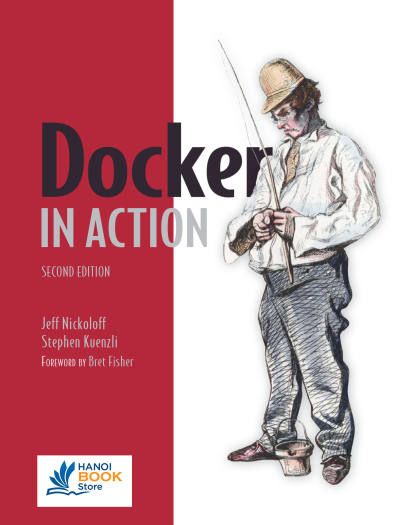
Return to Management view. The Docker in Action card now displays the uploaded book cover image.
6. Test the POST API (Create a new book)
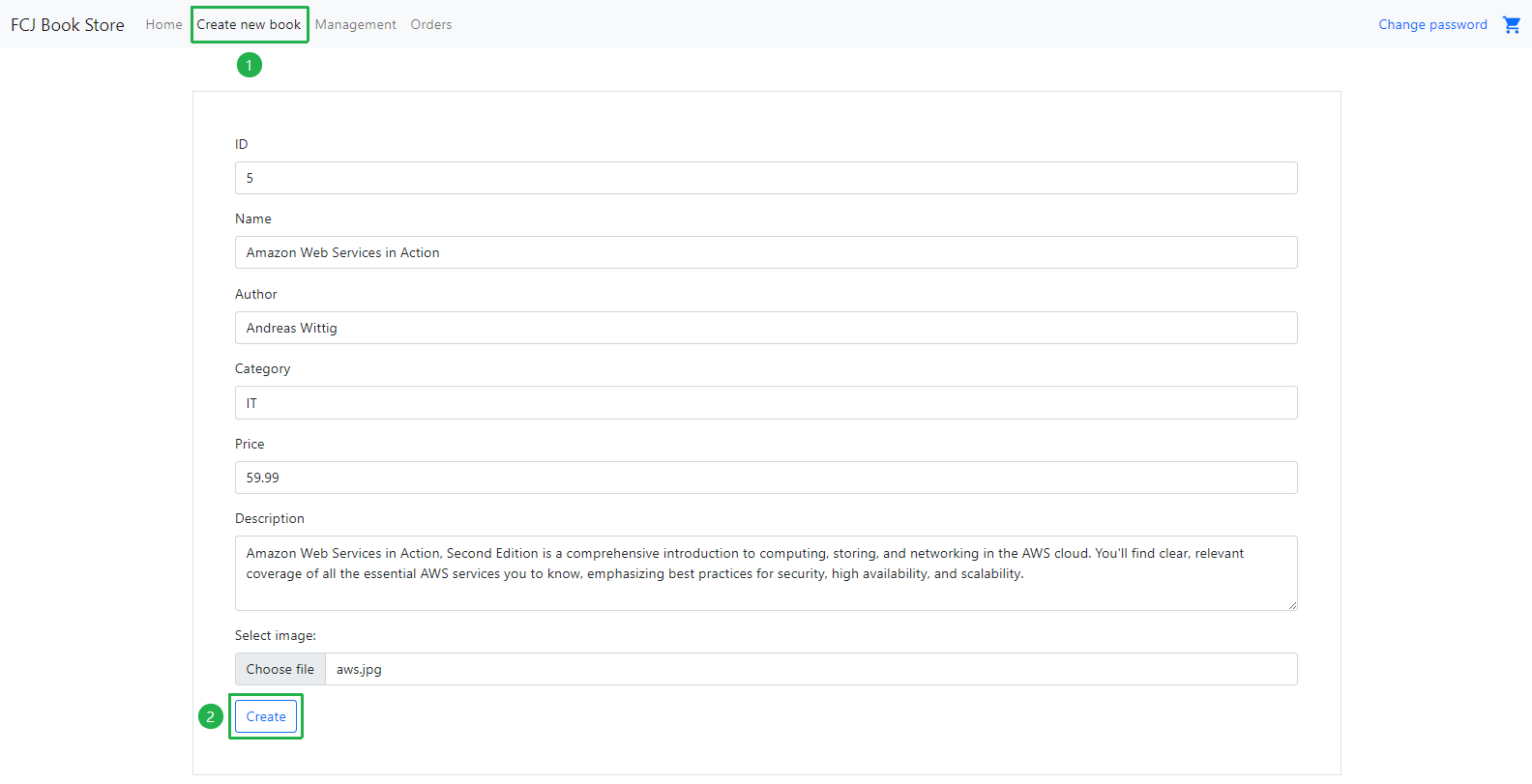
Click the Create new book tab.
Fill in the form with the following values:
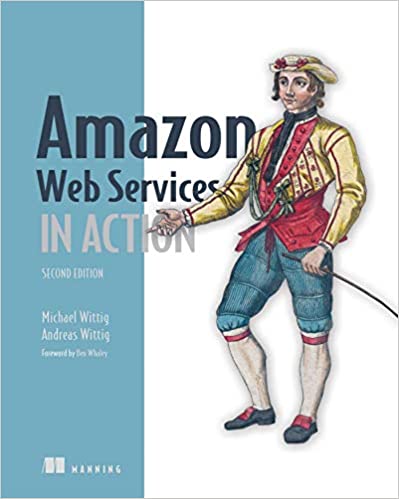
Field Value ID 5 Name Amazon Web Services in Action Author Andreas Wittig Category IT Price 59.99 Description Amazon Web Services in Action, Second Edition is a comprehensive introduction to computing, storing, and networking in the AWS cloud. You’ll find clear, relevant coverage of all the essential AWS services you to know, emphasizing best practices for security, high availability, and scalability. Image (select a local image, e.g., aws.jpg)Download the image
aws.jpgat Link and select this image file.Click Create.
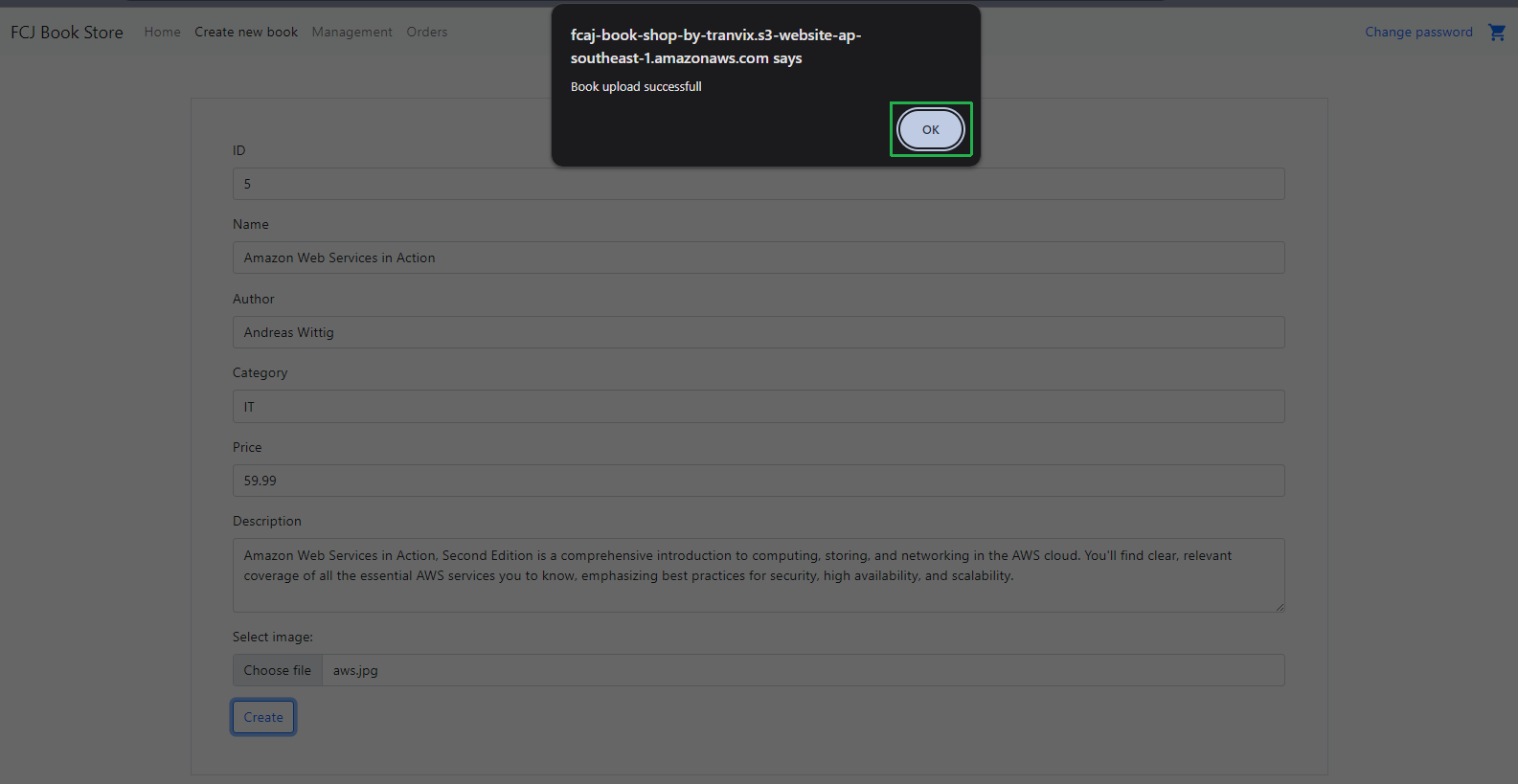
A browser dialog appears: “Book upload successfull”. Click OK.
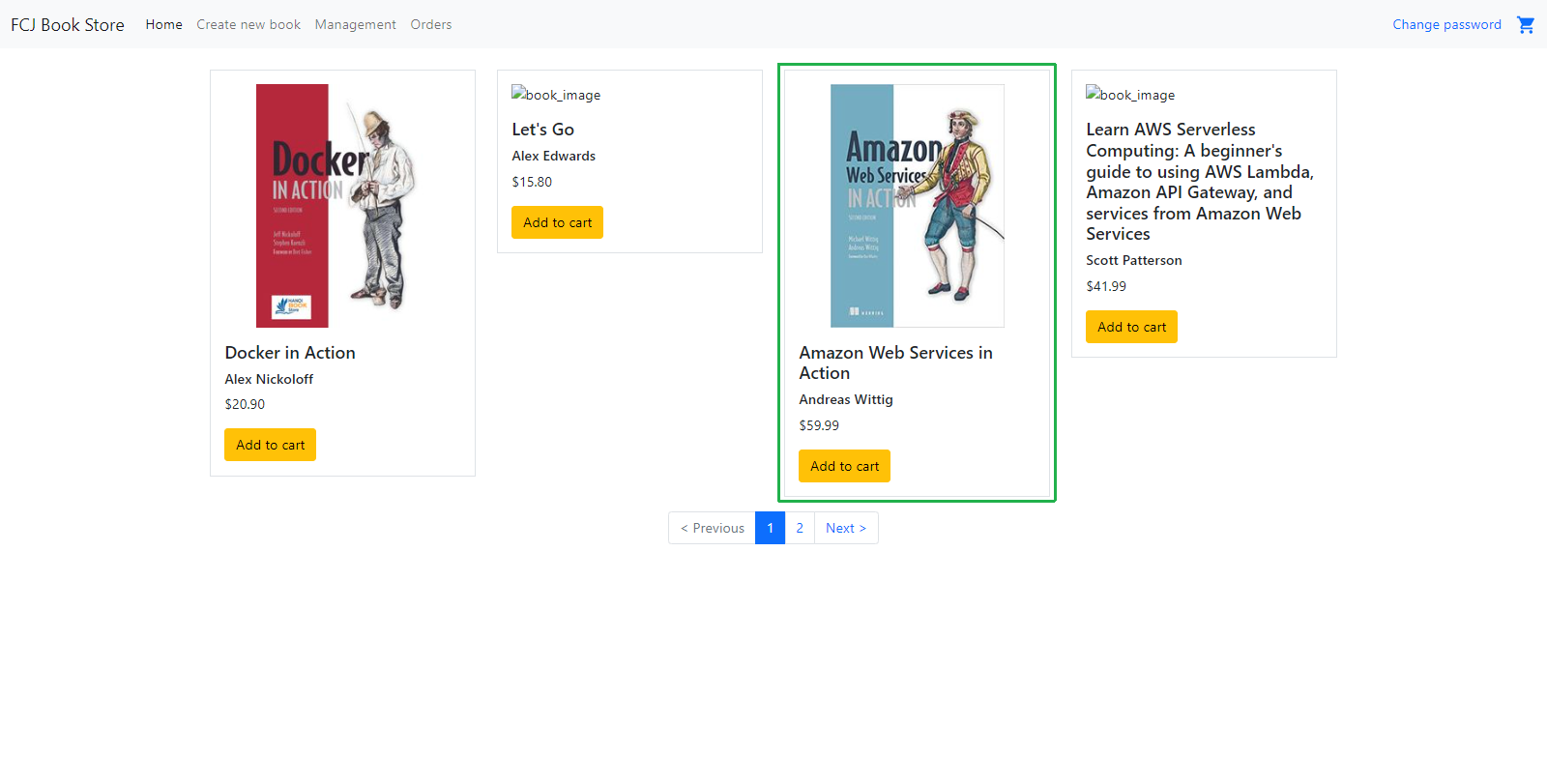
Navigate to the Home tab. The new book Amazon Web Services in Action by Andreas Wittig appears on the listing page — with its cover image — and pagination now shows Page 2.
7. Test the DELETE API (Delete a book)
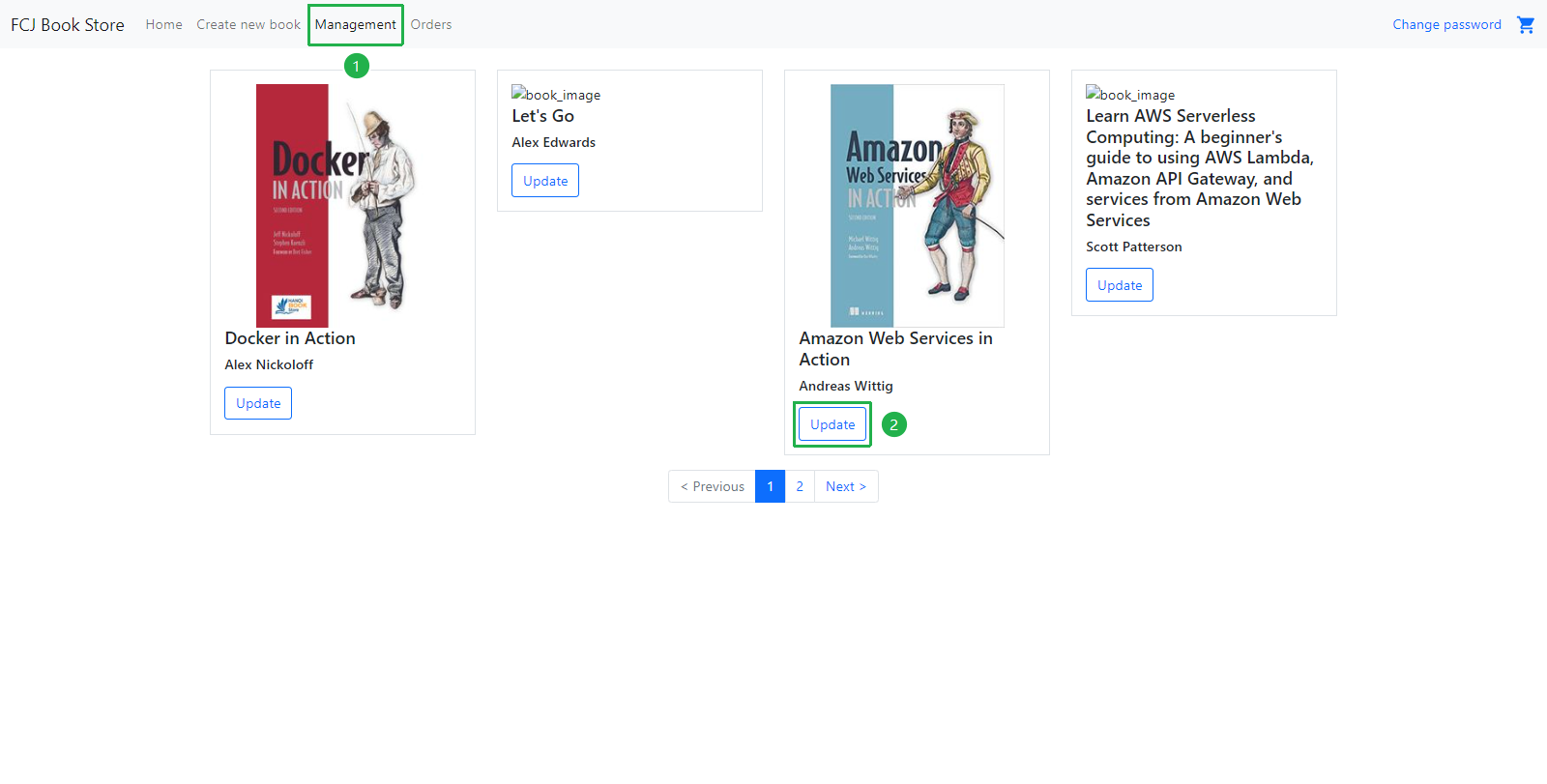
Click the Management tab. Find the Amazon Web Services in Action card (id = 5) and click its Update button.
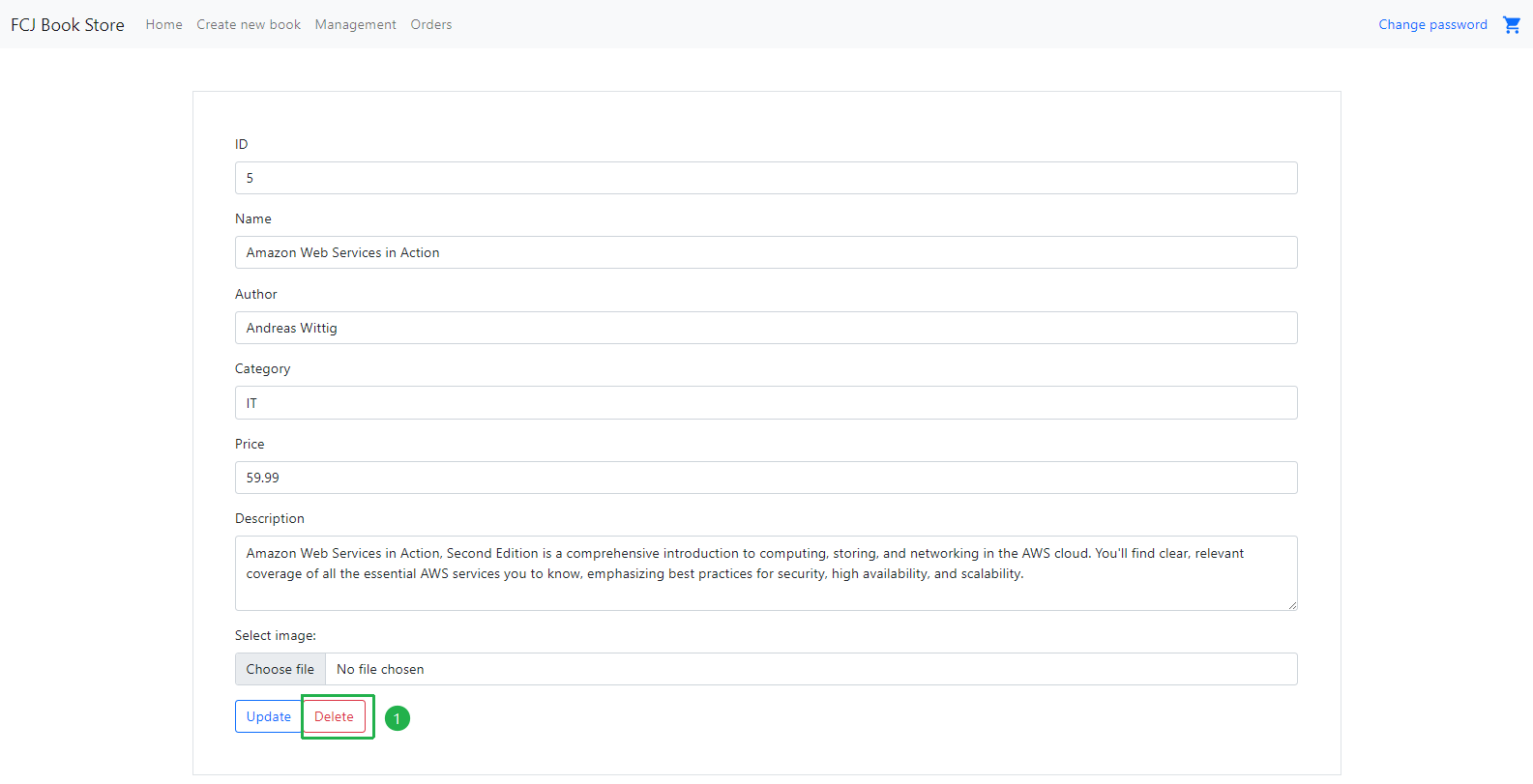
In the update form, click the Delete button.
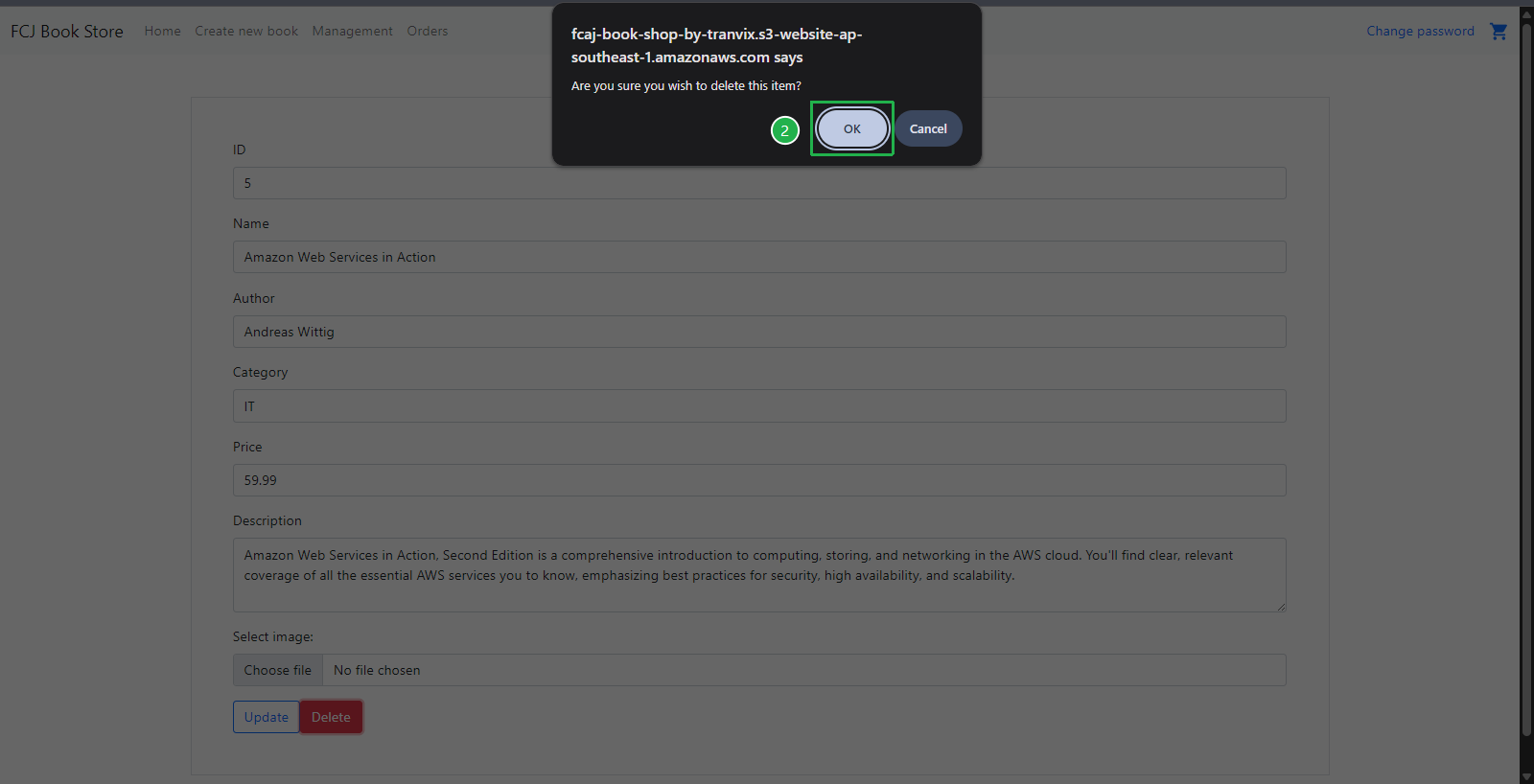
A browser dialog appears: “Are you sure you wish to delete this item?”. Click OK to confirm.
A second dialog appears: “Book delete successfull”. Click OK.
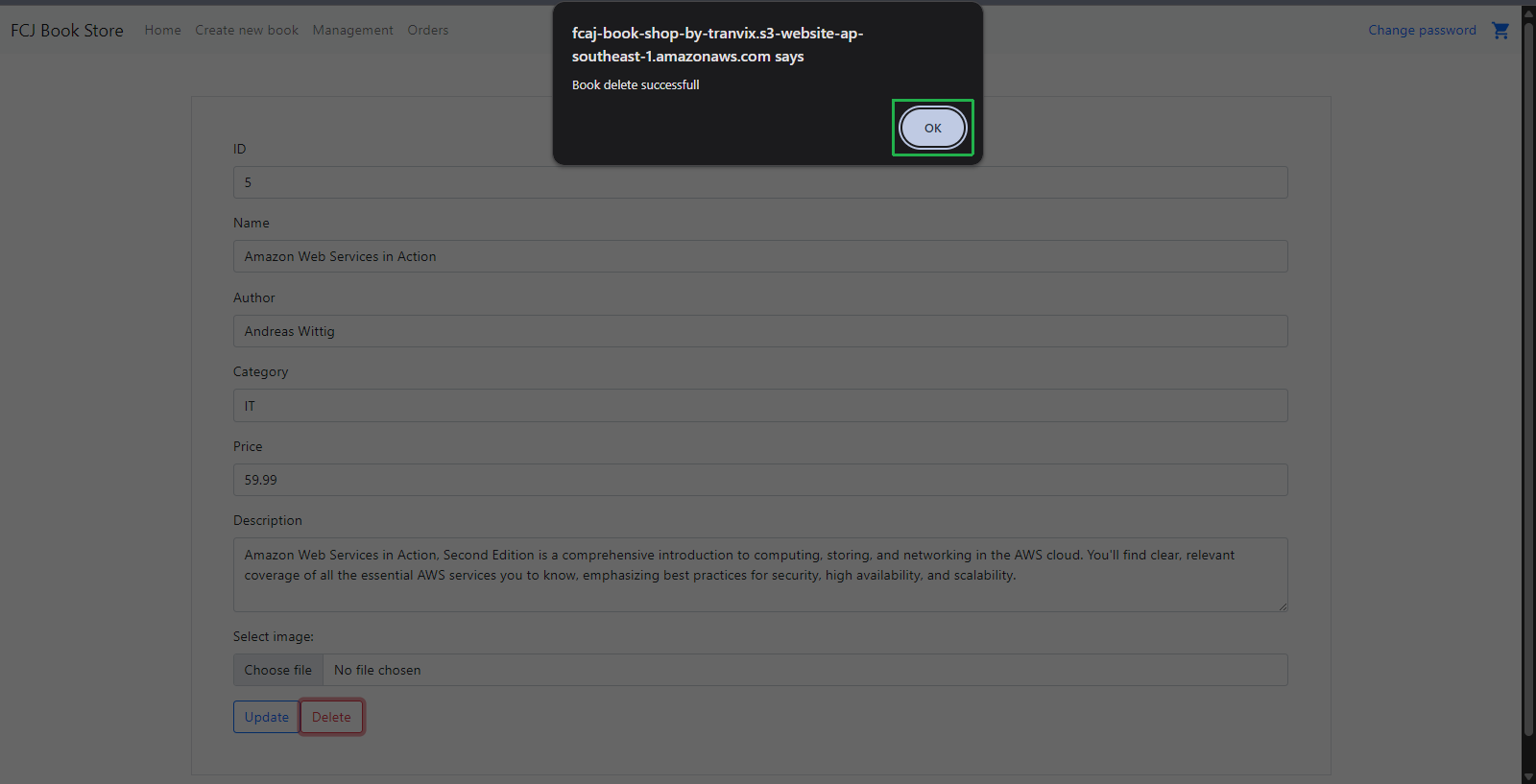
Return to Management view. The book with id = 5 (Amazon Web Services in Action) no longer appears. Pagination returns to a single page.